¶ How to Use Chat
¶ The Chat Input Field
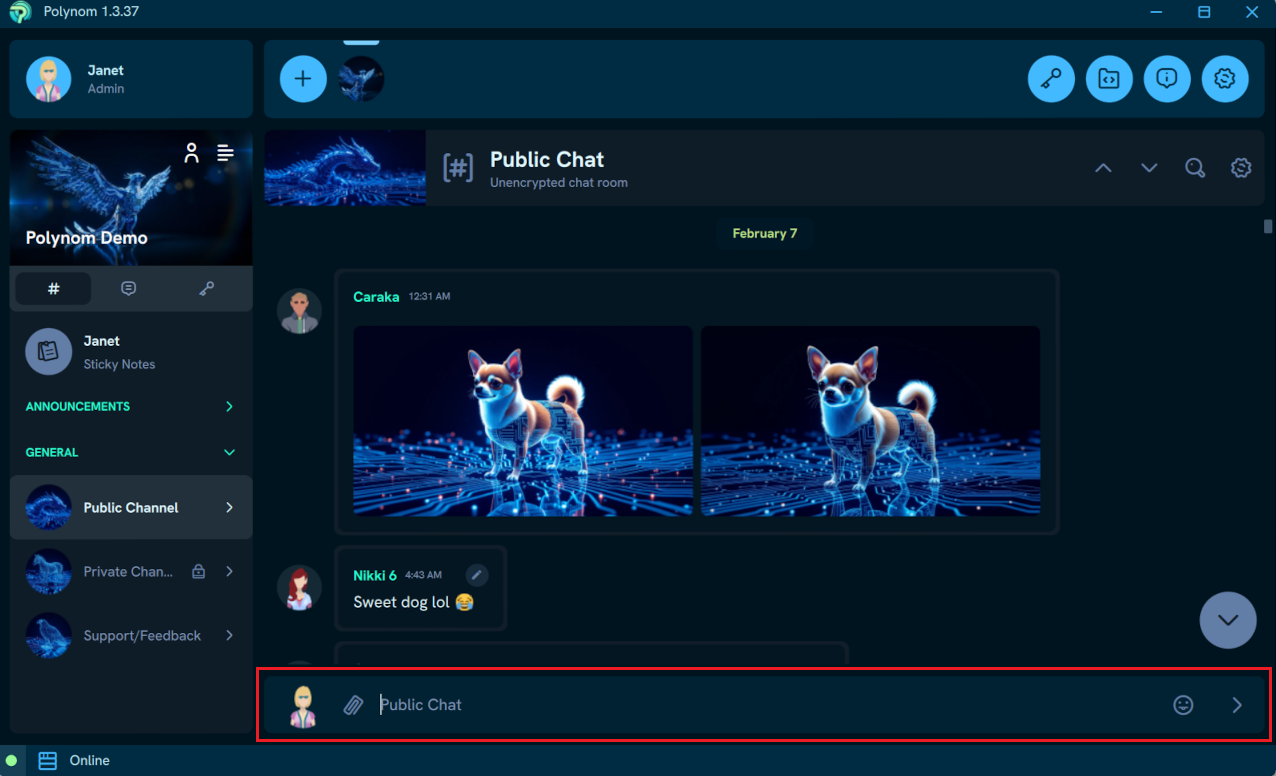
All messaging in Polynom is done through the Chat Input Field. The sections below explain each part of it.
¶ Anonymity
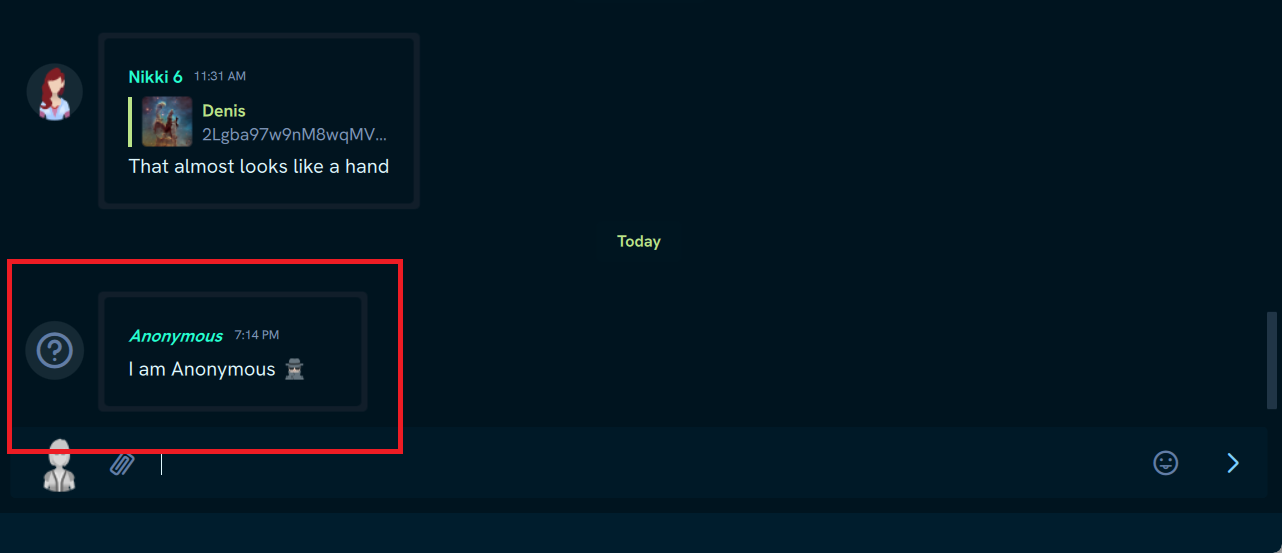
Messages sent with Anonymous mode enabled are completely anonymous, even to Server Admins. Toggle Anonymous mode on or off by pressing your Identity inside the Chat Input Field.

¶ Attachments
Press the Attachments button to add any file type to the Chat Input Field. To remove an attachment before sending, hover over it in the Attachments Box and Left-click.


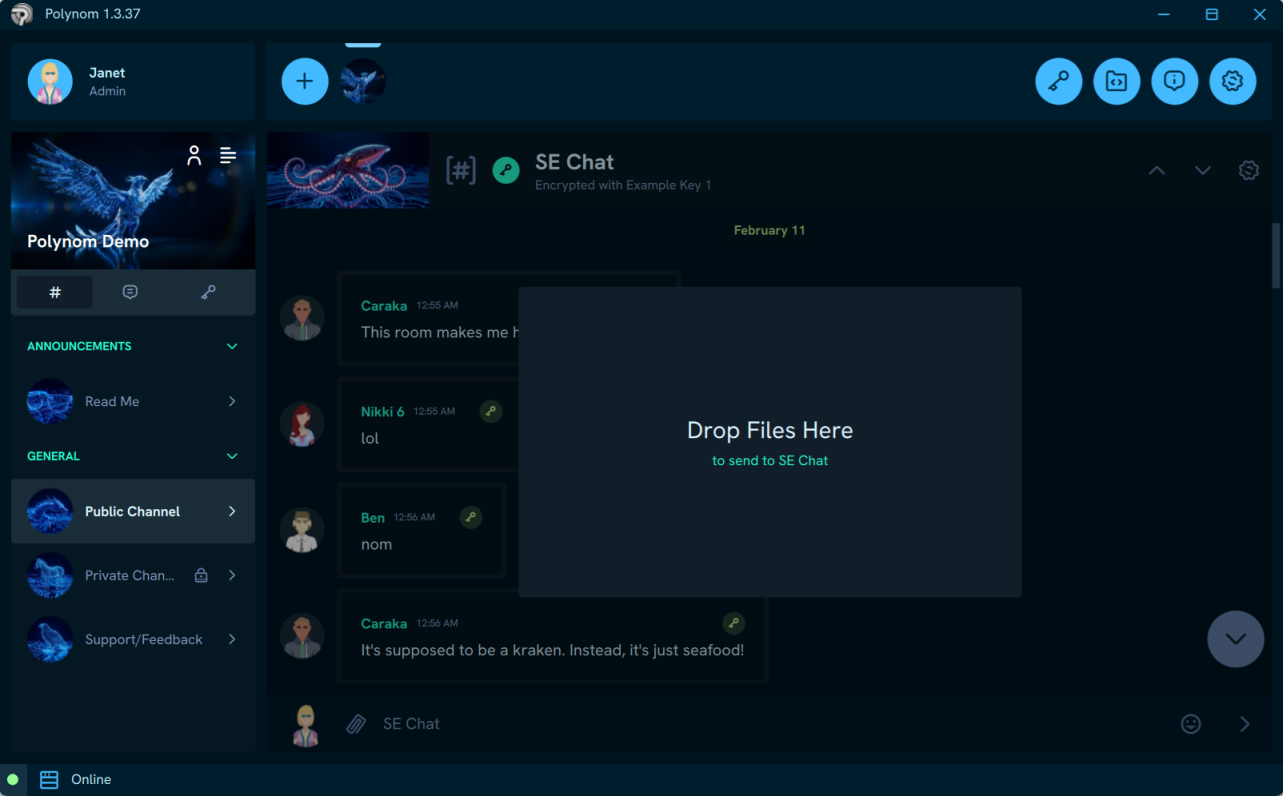
You can also drag and drop any file directly onto the Chat window to add it to the Input Field.
¶ Share File to Polynom (Mobile only)
Using the mobile Share feature automatically adds your chosen files to the Chat Input Field of any Chat you open in Polynom, until you either send them or manually remove them.
¶ Message Field
This is where you type your message content.

¶ Keyboard Navigation
The chat view can be scrolled using the keyboard while the Chat Input Field is focused. Pressing or holding the Up Arrow scrolls the chat upward, as long as the cursor is at the beginning of the Message Field or the field is empty. Pressing or holding the Down Arrow scrolls the chat downward, as long as the cursor is at the end of the Message Field or the field is empty.
¶ Mentions
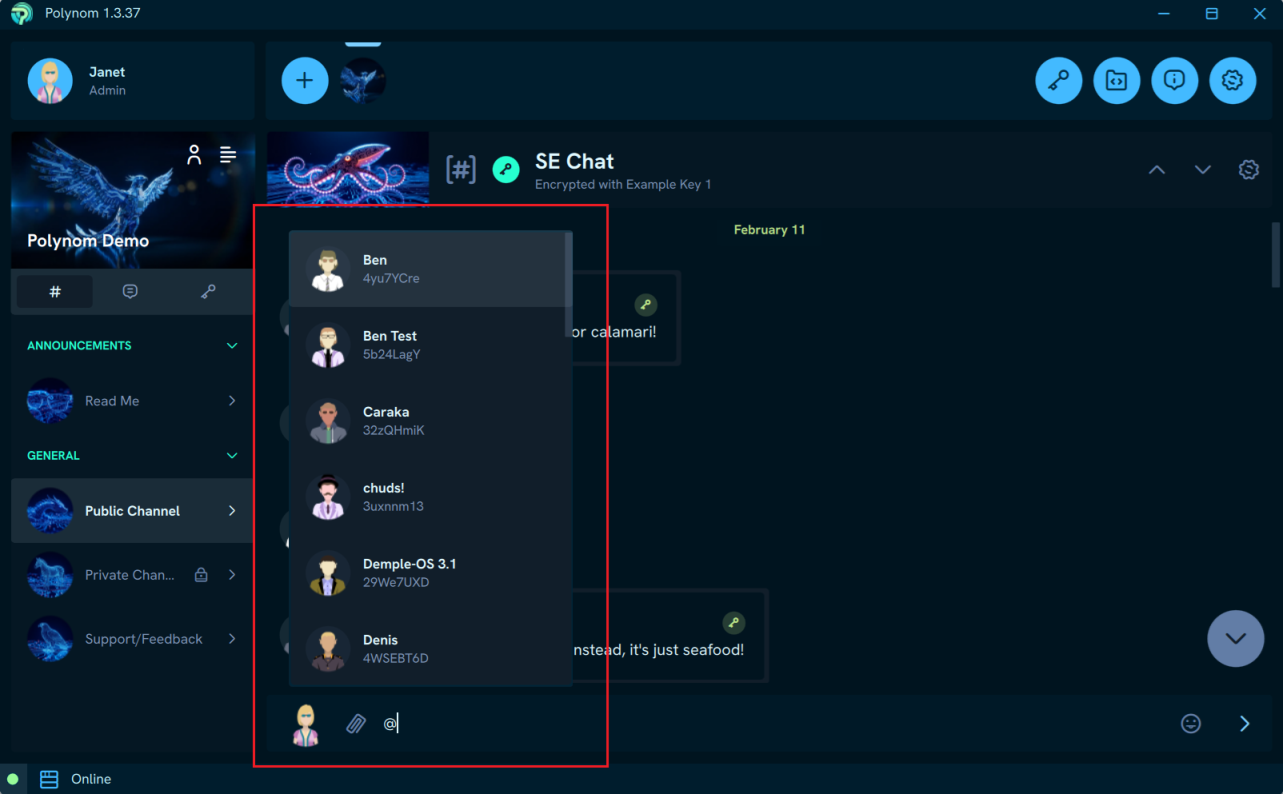
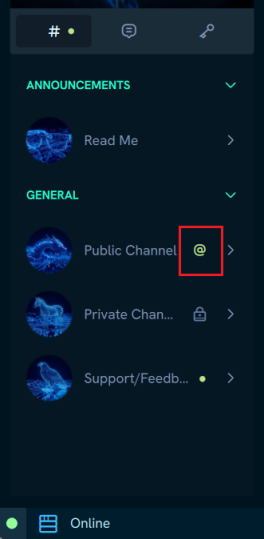
Type @ in any Chat Input Field to tag a User on the server. Tagged Users are notified of the mention only when they have visibility of that Chat. Mentions are distinguishable from standard unread indicators in the Channel list, making it easy to spot when your attention is specifically needed.
¶ Emoji picker
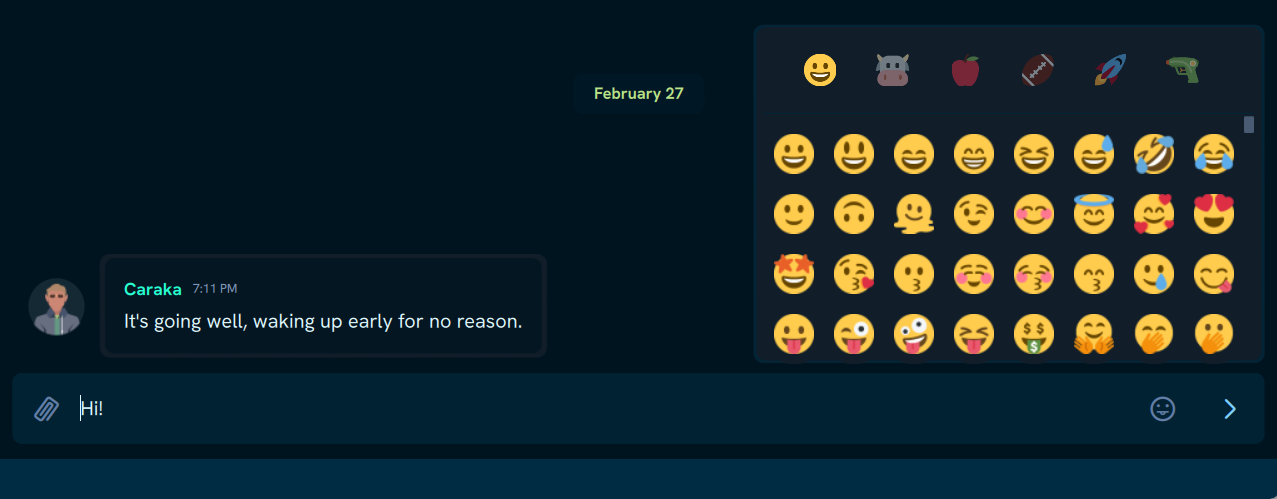
Press the Emoji button to browse available emojis. Pressing an emoji adds it directly to the Message Field.

¶ Send Button
Press the Send button to send your message along with any attachments. The button remains disabled until the Input Field contains content, at which point it becomes active.

Right-clicking the Send button while the Input Field contains content lets you send the message as an Urgent Message, which permanently highlights it in Chat for all Users.

¶ Editing Messages
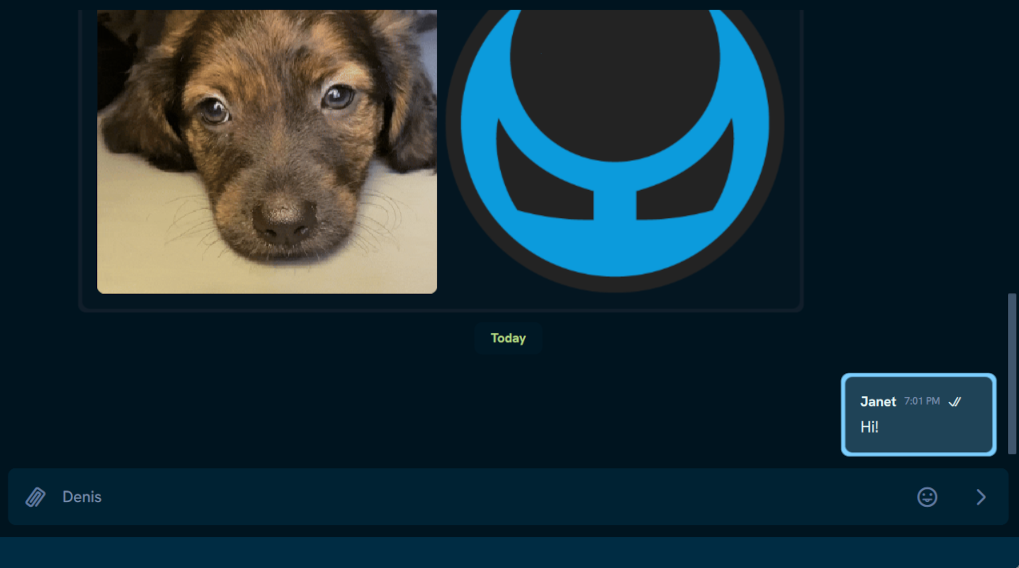
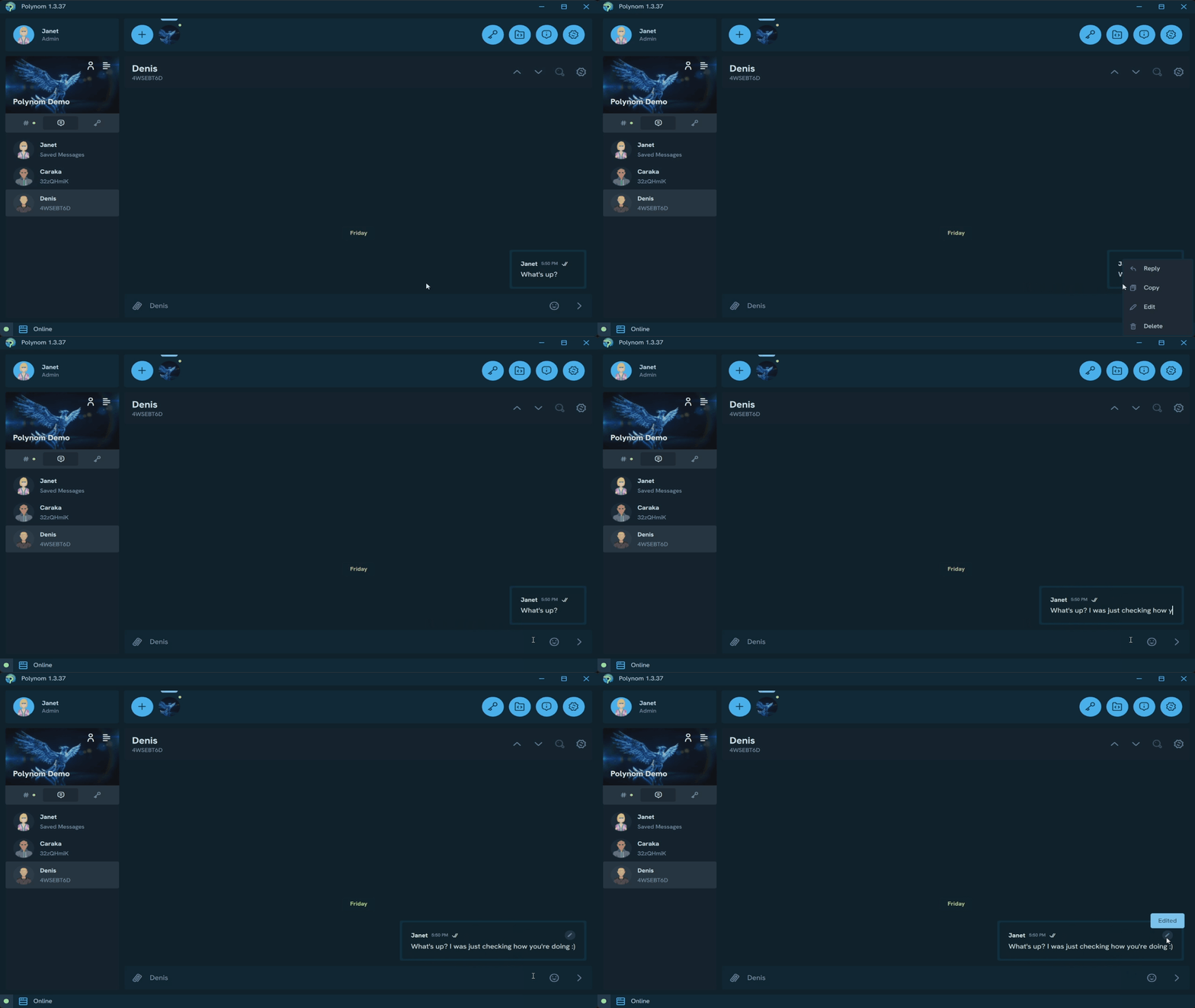
Right-click any of your own messages and press Edit to make changes inline. Once you are done, press Enter to confirm. An Edited status will appear in the top right corner of the message, visible to all Users who have visibility of it.
¶ Chat Settings
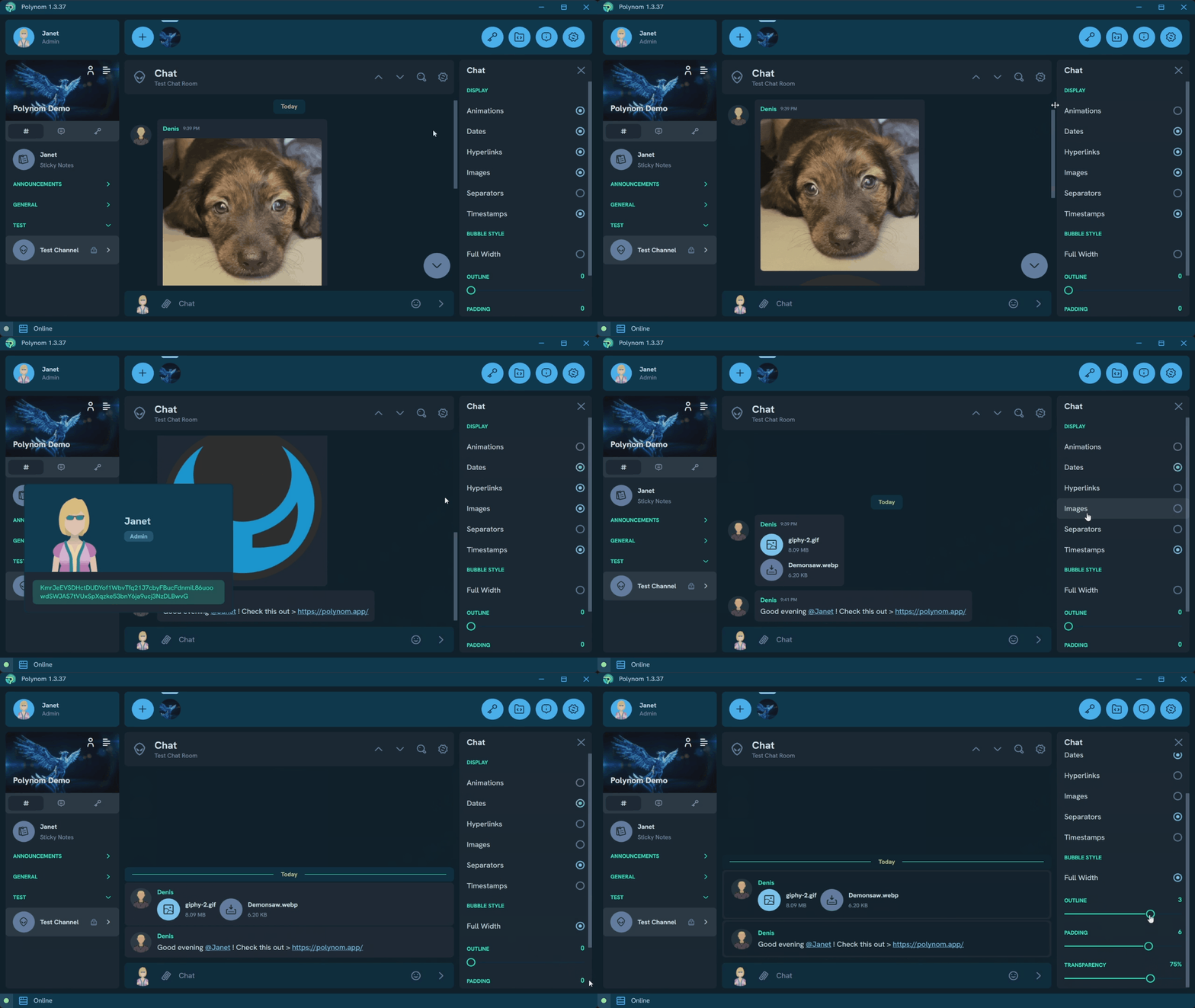
Chat Settings control how all Chat types look and behave. Access them via the Right Panel in any Chat Room or through the Chat page in Settings.
- Animations - Controls whether animation file types such as GIFs play inline or display as a static image
- Dates - Controls whether date markers appear in Chat
- Hyperlinks - Controls whether pressing hyperlinks and mentions in Chat is interactive
- Images - Controls whether images in Chat show inline previews. Does not affect the full screen Media View
- Separators - Controls whether date markers display with horizontal lines to make them stand out
- Timestamps - Controls whether Chat Bubbles display their timestamps
- Full Width Bubble Style - Switches to a compact mode where Chat Bubbles span the full width of the Chat regardless of content length, with minimal padding between them
- Outline - Controls the thickness of outlines around Chat Bubbles
- Padding - Controls the amount of padding between Chat Bubble content and its outline
- Transparency - Controls the opacity of Chat Bubbles and date markers. Does not affect Chat Bubble outlines