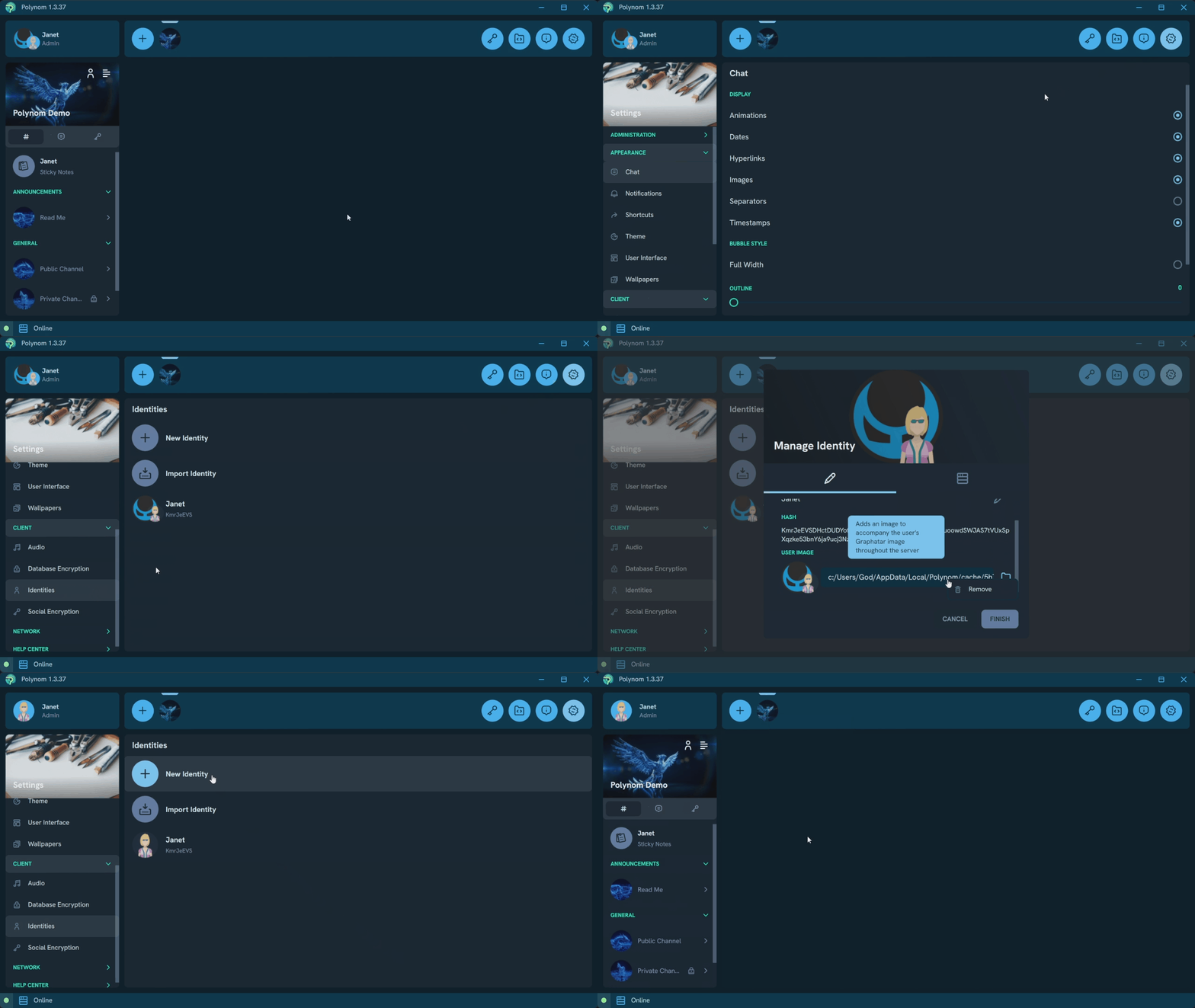
¶ Managing Your Identity
¶ What is an Identity?
In Polynom, an Identity is your account. It is a cryptographic key pair that uniquely identifies you across every server you connect to. Unlike traditional accounts, your Identity is not stored on any server or managed by any central authority. It belongs entirely to you, and exists only on the devices you create and import it on.
Every Identity has a unique Graphatar, a name, and a public hash that others can use to verify who you are. Because your Identity is defined by its cryptographic keys rather than a username or email address, it cannot be faked, reassigned, or recovered by anyone else. If you lose access to your Identity and have no backup, it is gone permanently.
This is why exporting and securely storing your Identity is one of the first things you should do after creating one.
¶ Graphatars
A Graphatar is a visual representation of your cryptographic Identity in Polynom. Because they are rendered as layered images derived from your unique Identity, Graphatars make it easy to quickly verify that the person your are speaking to is who you expect them to be.
For a deeper look at how Graphatars work, see the Graphatars™ page.
¶ How do I export my Identity?
Your Identity file contains the private keys for your account. Keep it somewhere safe and always protect it with a strong password.
On Windows, click the gear button in the Toolbar to open Settings, then navigate to Identities. Right-click the Identity you want to export and select Export. Enter a strong password and save the file somewhere secure.
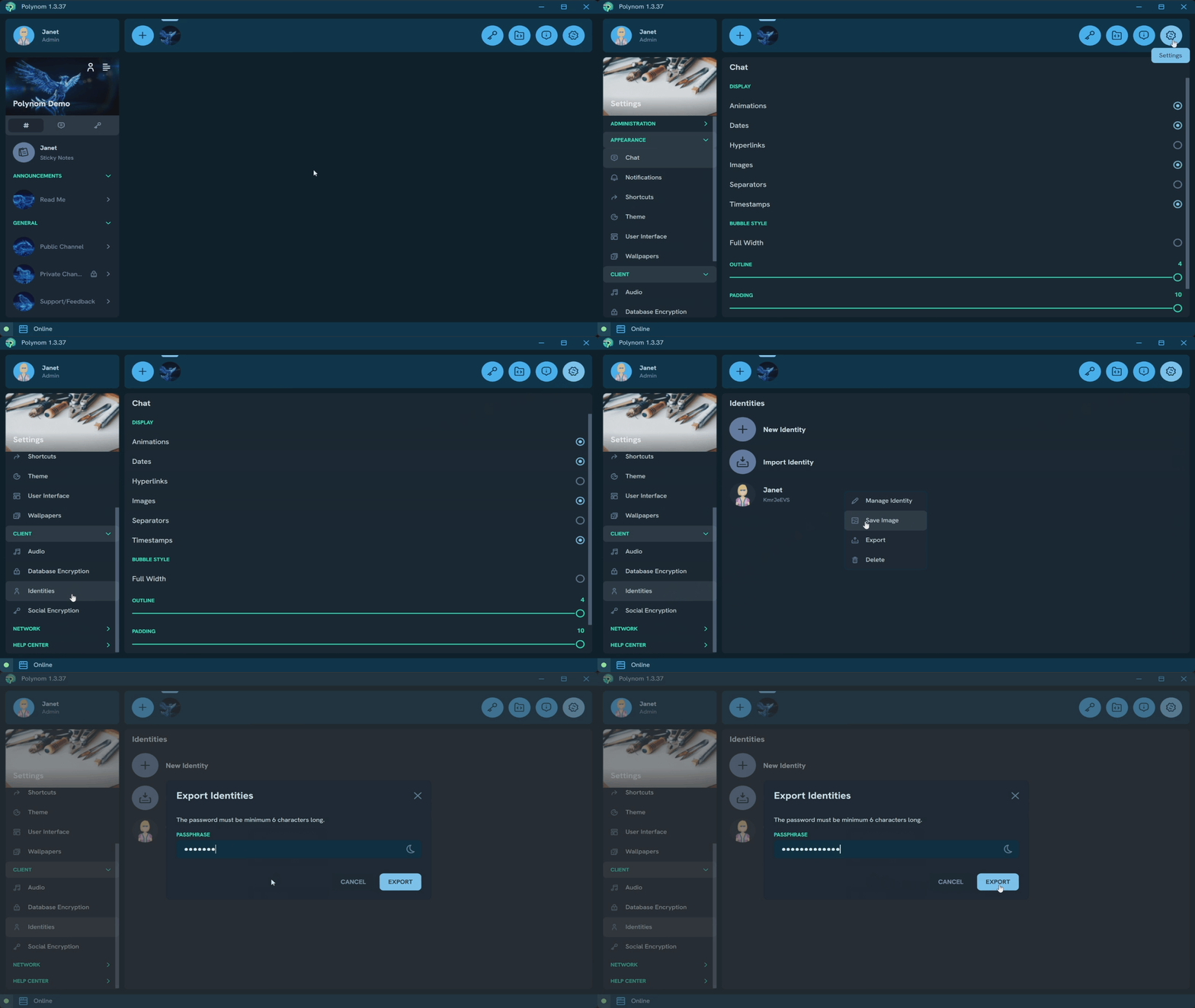
On Mobile, tap the gear button in the Toolbar, then open Identities. Press and hold the Identity you want to export and select Export. Enter a strong password to protect the file.
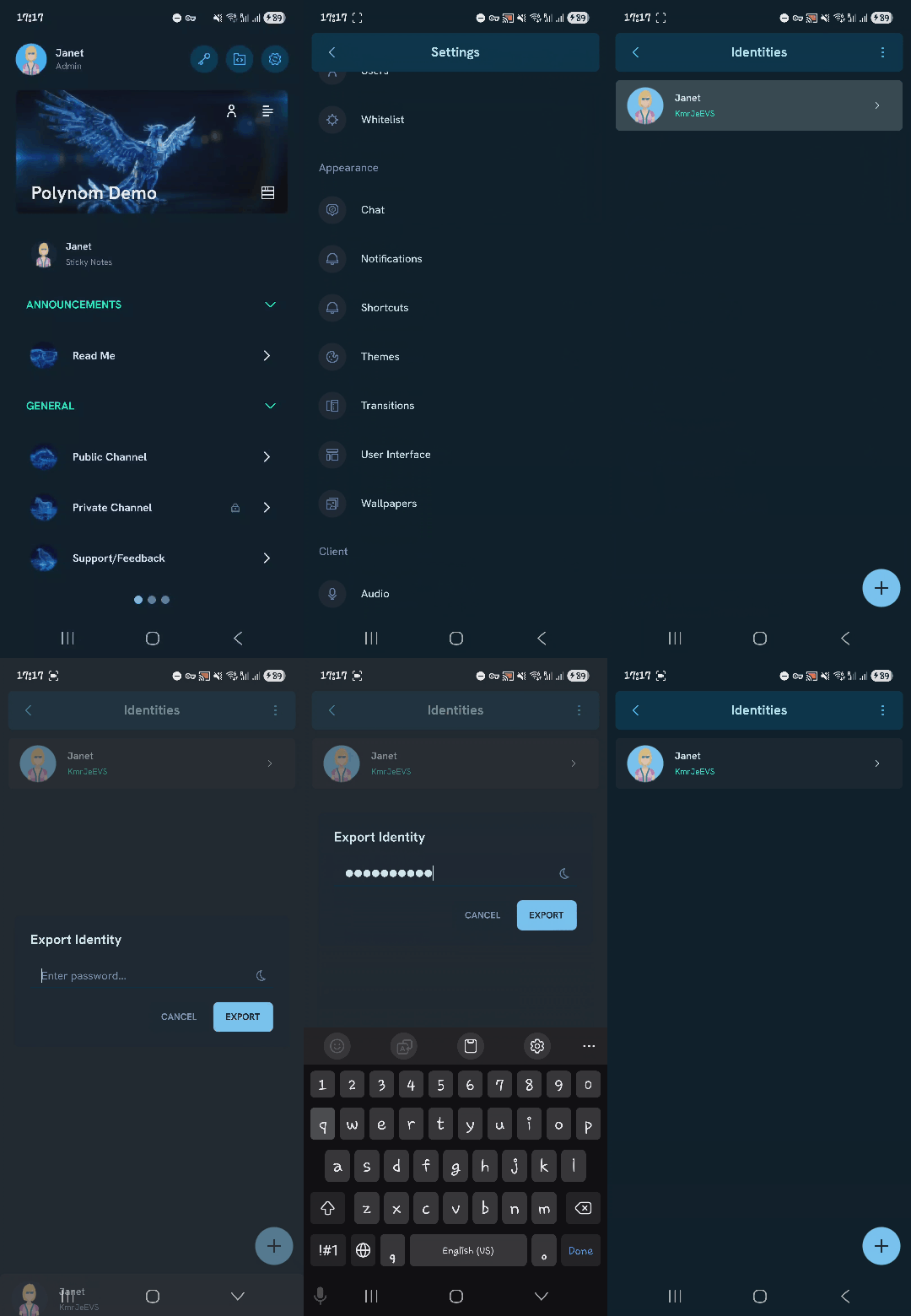
¶ How do I import an existing Identity?
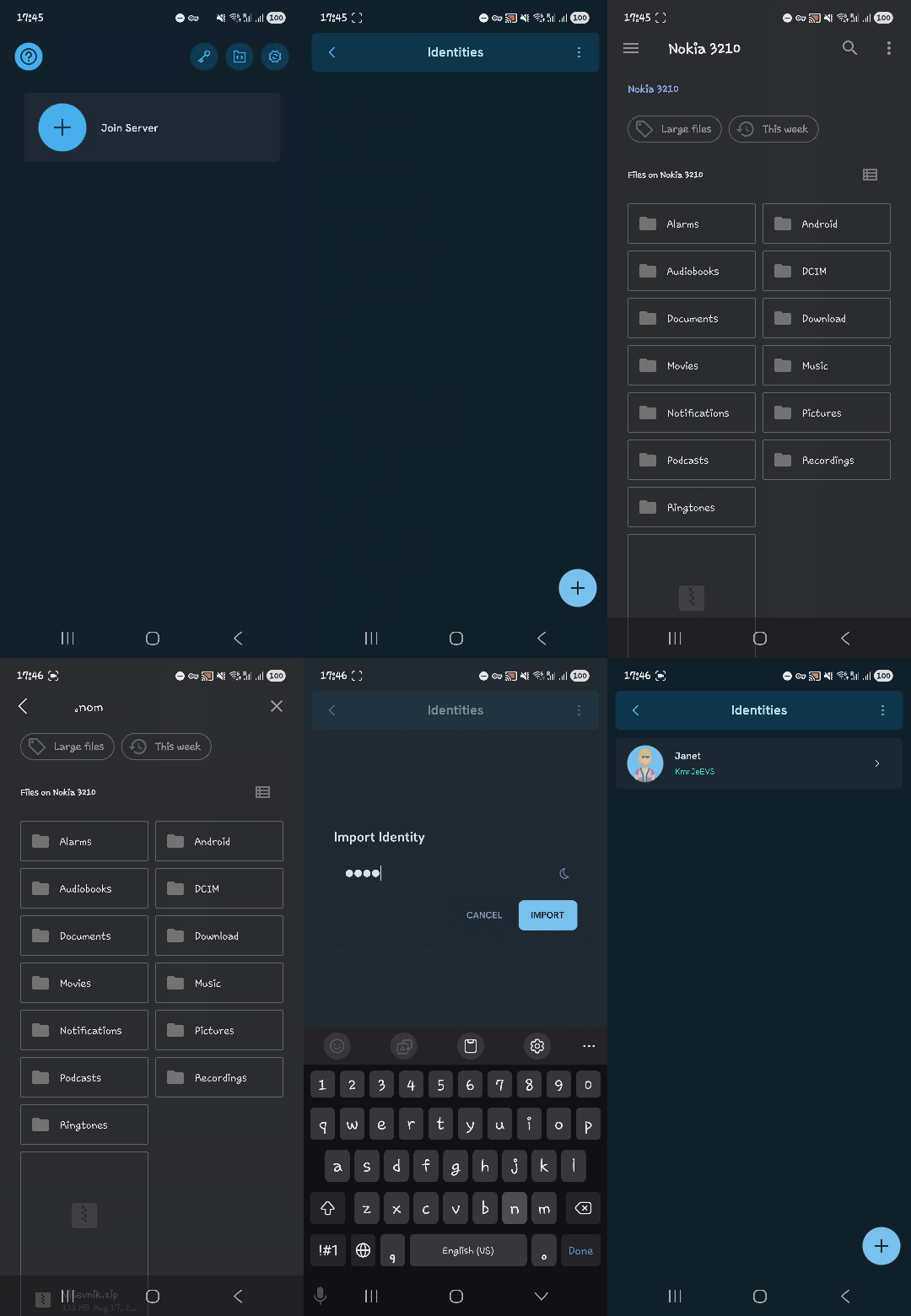
This assume you have previously exported your Identity and have the password protected file saved on your device.
On Windows, click the gear button in the Toolbar to open Settings, then navigate to Identities and click Import Identity. Enter your password when prompted and the Identity will appear in your list.
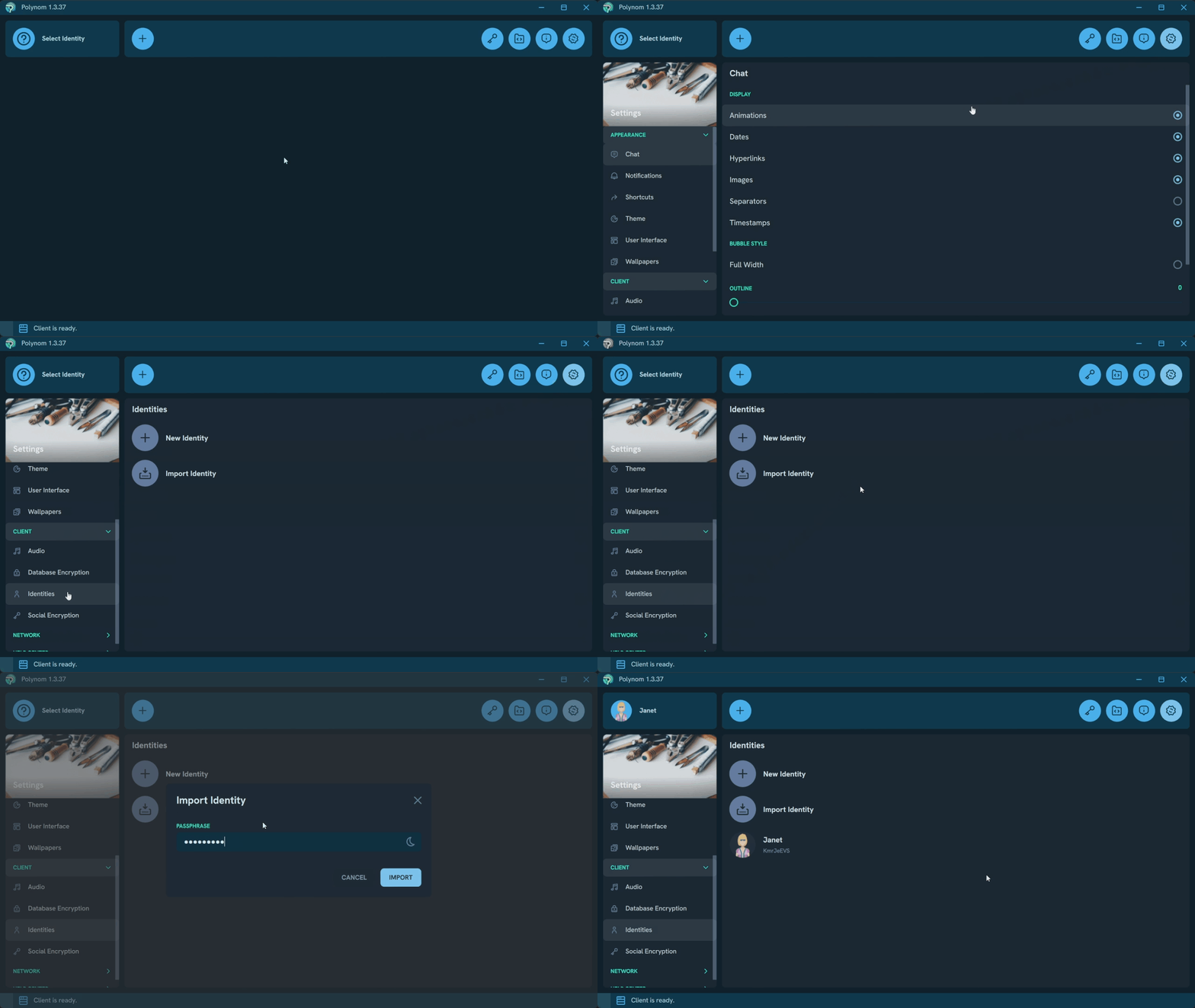
On Mobile, tap the gear button in the Toolbar, then open Identities. Tap the three dot menu in the top right corner and select Import from the menu that appears. Enter your password when prompted and the Identity will appear in your list.
¶ Can I change my Identity name?
Yes. Your Identity is defined by your Identity hash, not your name, so your name does not need to be unique and can be changed as many times as you like.
¶ How do I change my Identity name?
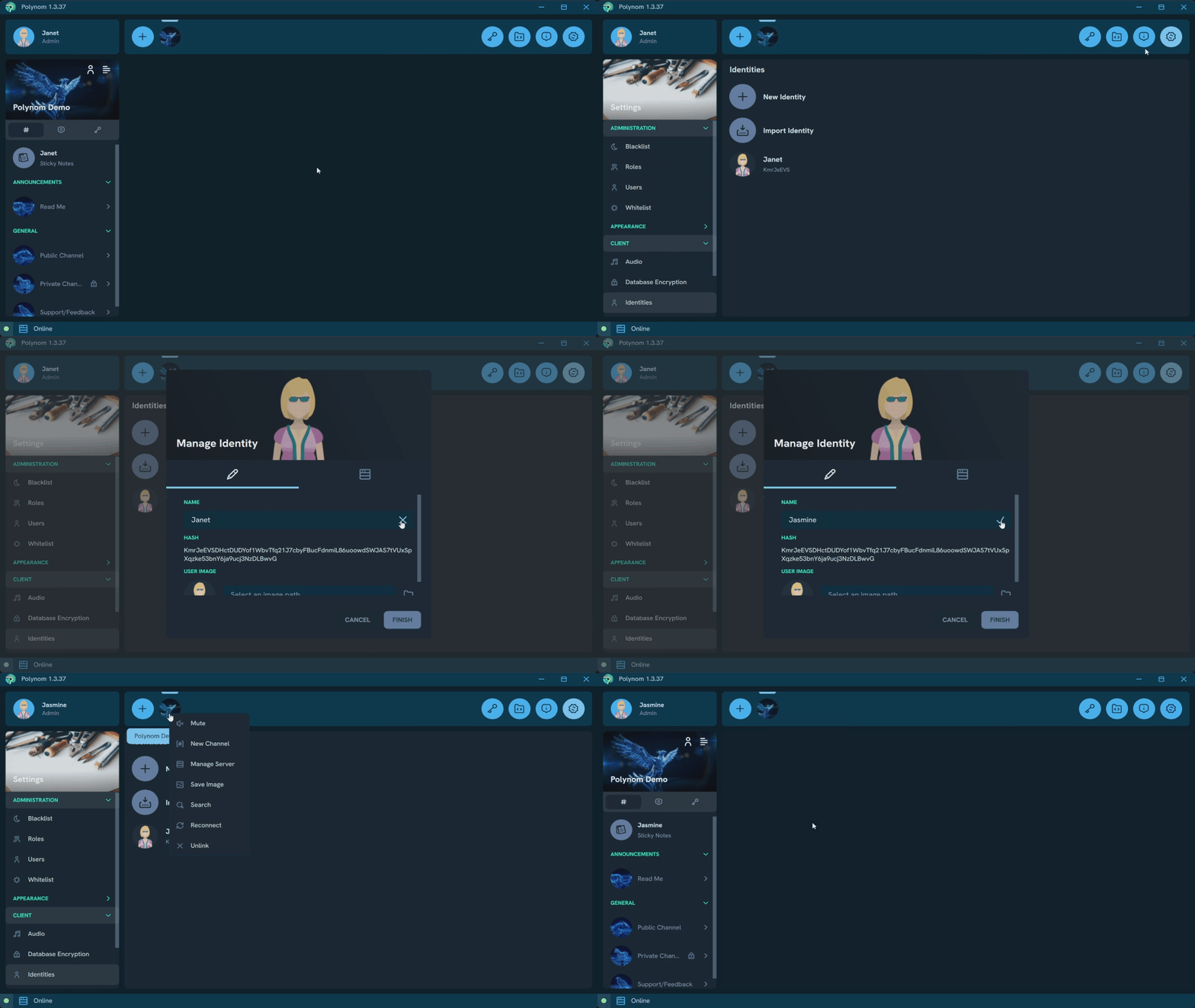
Open Settings via the gear button in the Toolbar and navigate to Identities. Select the Identity you want to edit, press the Name Edit button, make your change, apply it, then press Finish.
To make the change visible to other users right away, reconnect to your servers after saving. Until a reconnect happens, others may still see your previous name.
¶ How do I set a custom Profile Photo?
Open Settings via the gear button in the Toolbar and navigate to Identities. Select the Identity you want to update, press Select an image path, choose your photo, then press Finish.
To make the change visible to other users right away, reconnect to your servers after saving.
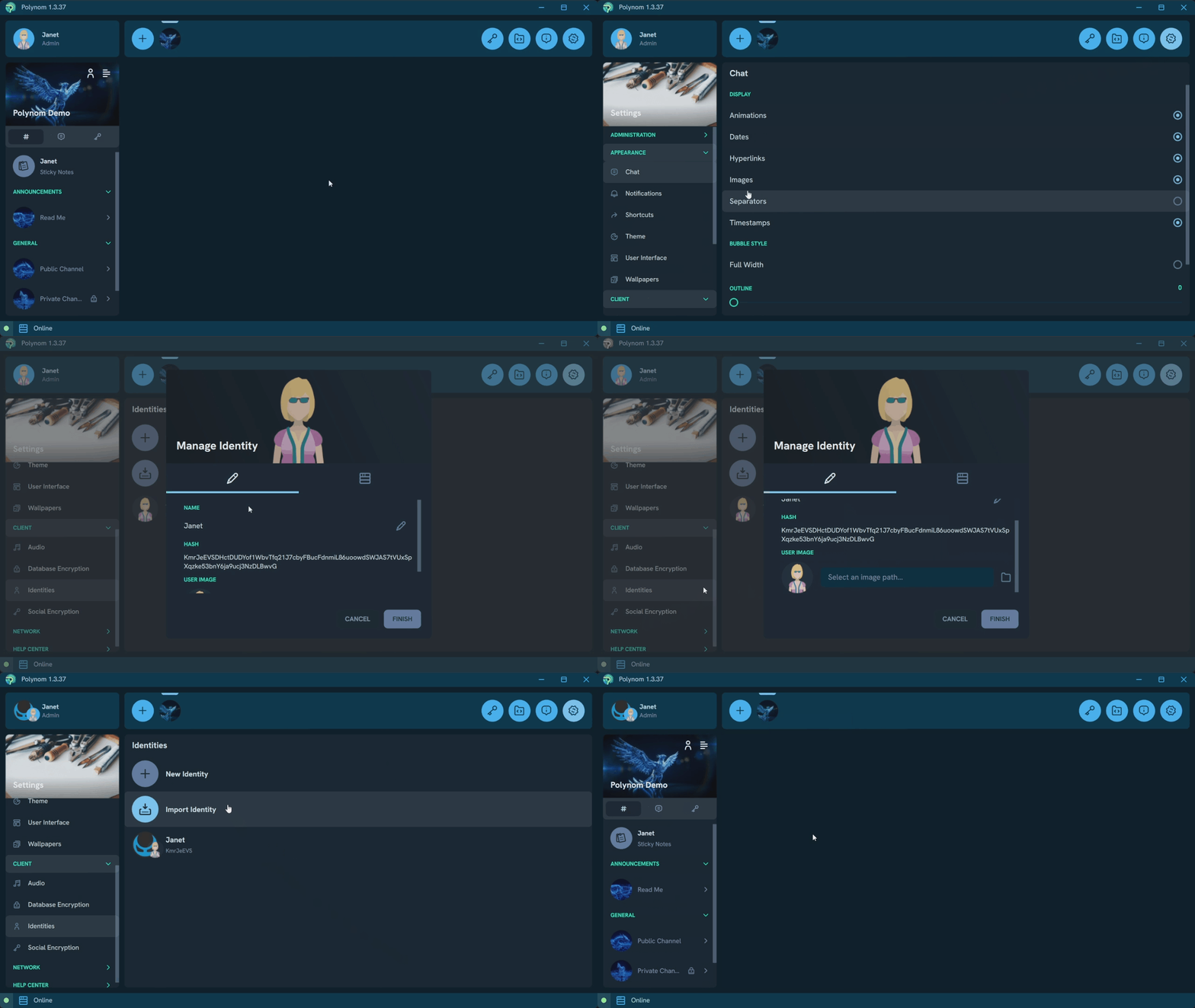
Note: Your custom Profile Photo will only display on servers where you have the Upload User Images permission. On servers where another user has the Manage Users permission, they may override your Profile Photo.
¶ How do I replace or remove my Profile Photo?
To replace it, follow the same steps as setting it up. Your existing photo will be overwritten. Reconnect to your servers for the change to show immediately for other users.
To remove it, open Settings via the gear button in the Toolbar and navigate to Identities. Select the Identity you want to update, open the User Image context menu, press Remove, then press Finish. Reconnect to your servers for the change to show immediately for other users.