¶ Polynom™ Server Quick Start for Linux:
Polynom Community Server is a single, statically linked binary built for rapid deployment with modest resources. On first run, the binary initializes all files, folders, and the database in its current working directory, unless you specify a custom path using the POLYNOM_SERVER_PATH environment variable.
There are two methods of deploying a Polynom Server: manually or using Docker. With both methods, it is best to prepare the Server Admin's Graphatar in advance, as outlined below.
¶ Minimum Requirements
This guide assumes:
- You intend to host Polynom on a Linux server
- You have a basic understanding of using Linux from the command line
- You have access to your server from a Windows or Linux machine
- You have a basic understanding of firewalls
- You are able to port forward through your home router if hosting from home
- You have reviewed the Server FAQs to familiarize yourself with common server settings
Minimum requirements to run the Polynom Server:
- A physical or virtual machine running a fully updated amd64 Debian 12+
- 1 vCPU or physical CPU core
- 1 GB of RAM
¶ Prepare Your Server Admin Graphatar™
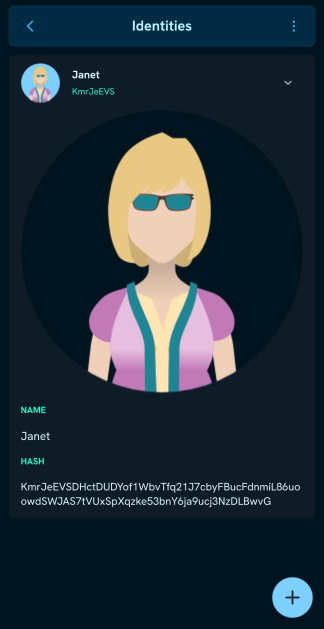
If you already have the public address of the Graphatar that will serve as Server Admin, skip step 3 in the following section:
Every server needs at least one Server Admin to oversee all matters. The Server Admin has all permissions on the server by default and should not be confused with the slightly less powerful built-in Admin Role.
- Install the Polynom client on your desktop or Android device
- If you do not have one already, create the Identity that will be assigned as Server Admin
- Copy the hash of the Server Admin's Graphatar into a file called
admin.txt - Set the
admin.txtfile aside for server initialization
Important: Multiple Server Admin addresses are supported (one per line), though this is not recommended. You must know and trust anyone given Server Admin rights, as they can delete content and manage the Whitelist and Blacklist.
¶ Initialize the Polynom Server
This section assumes that you have a local or remote server already set up with ssh access and sudo privileges for an ordinary user.
The Polynom Server binary creates all files and subfolders in its current working directory, or in the directory specified by the POLYNOM_SERVER_PATH environment variable. You are free to choose where it lives. Those who want to follow the Linux Filesystem Hierarchy Standard (FHS) can install the binary in /opt/polynom or /opt/codesiren/polynom/, though a folder in the host user's home directory works just as well.
¶ Download the Polynom Server
From the server command prompt:
$ wget https://polynom.app/releases/1.3.37/polynom_linux_server.tar.gz
$ tar -xvf polynom_linux_server.tar.gz
$ mkdir ~/polynom
$ cp polynom_server ~/polynom/polynom_server
$ chmod +x ~polynom/polynom_server
¶ Open the Required Ports
Polynom requires both UDP and TCP open on the server. The commands below assume you are using UFW. Adapt as needed for iptables or other firewall tools
$ sudo ufw allow 1337/tcp
$ sudo ufw allow 1337/udp
Note: If you are hosting from home or a business network, you will also need to port forward from your router. Refer to your router's manual for instructions on forwarding the Polynom port to your server's local IP address.
¶ First Run
When installing manually, there are two options for the first server run:
- Start the server in admin mode (-a), which automatically assigns Server Admin status to any client that connects. Stop the server and restart in normal mode once done, or
- Start the server in normal mode, stop it, add the
admin.txtfile created earlier to theadminfolder, then restart in normal mode
After the second restart, type u at the command prompt to list all users on the server. At this point, only the Server Admin(s) should appear.
Please note: The server runs in Private mode by default, meaning no identities other than your admin user can connect until their hash is added to the Whitelist via the client settings. Most server admins switch to Public mode after completing setup, unless an invite only server in intended.
Please note: The server runs in Trusted mode by default to make it easier for clients to connect. For high security situations, switching to Untrusted mode is an option, though this comes with a significant administrative burden when onboarding new users.
¶ Server Flags
Polynom Community Server 1.2
| Flag | Description |
|---|---|
| -a [ --admin ] | Enable admin mode |
| -f [ --folder ] arg | Folder path |
| -g [ --gateway ] arg | Gateway endpoint (address:port) |
| -G [ --gateway_hash ] arg | Gateway hash |
| -h [ --help ] | Display help message |
| -l [ --log ] | Log to screen |
| -p [ --port ] arg | Port number (1 to 65535) |
| -t [ --threads ] arg | Number of threads (2 to N) |
| -v [ --version ] | Display version number |
Polynom Community Server 1.3
| Flag | Description |
|---|---|
| -a [ --admin ] | Enable admin mode |
| -f [ --folder ] arg | Folder path |
| -g [ --gateway ] arg | Gateway endpoint (address:port) |
| -h [ --help ] | Display help message |
| -k [ --keys ] arg | Database encryption key(s) |
| -l [ --log ] | Log to screen |
| -p [ --port ] arg | Port number (1 to 65535) |
| -t [ --threads ] arg | Number of main/getaway threads (2 to N) |
| -v [ --version ] | Display version number |
Using -g without an address:port enables the default gateway, which is suitable for most users. Polynom Enterprise will include an optional self hosted gateway server.
By default, if no gateway threadpool is specified, it will be set to half of the main threadpool value.
Polynom Server does not run as a deamon. To maintain and recover the active console after leaving the host, start the binary using tmux, screen or docker attach if using Docker.
External reference: Tmux Cheatsheet (use at your own risk)
¶ Setting Up with tmux
The following assumes your admin.txt is ready. Adapt as needed:
$ sudo apt install tmux
$ cd polynom
$ tmux new -s poly-session
$ ./polynom_server
The server should now start. Type ? to see available server options. Type x to exit so you can add your Server Admin file.
Copy the admin.txt file into the ~/polynom/admin/ folder that Polynom created. The commands below use the pscp utility for Windows and scp for Linux. Replace ${USER} with your username on the remote host.
From Windows:
$ cd C:\Users\${USER}Documents\
$ pscp admin.txt ${USER}@<Server_IPAddress>:/home/${USER}/polynom/admin
From Linux:
$ cd /home/${USER}/Documents
$ scp admin.txt ${USER}@<Server_IPAddress>:/home/${USER}/polynom/admin/
Return to your ssh tmux session and restart Polynom:
$ ./polynom_server
Add your new server from the Polynom desktop app and verify you can connect. In your tmux session, type a to list all users on the server. You should see only those from the admin.txt file. If you started with -a, confirm that no unintended users joined as Server Admins during setup.
You can now detach from your tmux session.
Important: Always detach from tmux before ending your
sshsession. Closing the session without detaching will crash the server. Detach withCtrl-b d, then exit. To reattach latersshinto the server and run$tmux attach.
Your new server is configured to Private Mode by default. The Server Admin can now adjust this and other settings from within the desktop app. If you keep the server private, new users' public keys must be added to the Whitelist before their client can connect.
This Dockerfile is an example only and is provided as is. It is known to work but has not been tested for production security. Use at your own risk.
FROM debian:bookworm-slim

RUN set -x &&\
    groupadd --gid 1000 nom &&\
    useradd --gid nom --no-create-home --shell /bin/bash --uid 1000 nom

# Placeholder: Add the server path in the docker run or docker compose stage of the deployment
ENV POLYNOM_SERVER_PATH=

COPY polynom_server /usr/local/bin
RUN chmod +x /usr/local/bin/polynom_server &&\
    chown nom:nom /usr/local/bin/polynom_server &&\
    mkdir /data &&\
    chown nom:nom /data

USER nom

EXPOSE 1337/tcp
EXPOSE 1337/udp

ENTRYPOINT ["polynom_server"]
This yaml file is an example only and is provided as is. It is known to work but has not been tested for production security. Use at your own risk.
services:
  polynom:
    image: caraka/polynom_server:1.3.37
    container_name: polynom
    hostname: polynom
    user: 1000:1000
    stdin_open: true
    tty: true
    ports:
      - "1340:1337/tcp"
      - "1340:1337/udp"
    environment:
      - POLYNOM_SERVER_PATH=/data
    volumes:
      - <your/data/path>:/data
    command:
      # enables mobile (FCM) notifications:
      - -g
      # encrypts the db with the sqlite_key:
      - '-k $$(cat /run/secrets/polynom_sqlite_key)'
    secrets:
      - polynom_sqlite_key
    restart: unless-stopped

secrets:
  polynom_sqlite_key:
    file: ./polynom_sqlite_key
The key items to note are POLYNOM_SERVER_PATH, the stdin_open, and tty. The server path tells Docker where to store the Polynom database and files. The stdin_open and tty settings ensure that $docker attach <container_name> reaches the correct active console. Detach from the container with Ctrl-P followed by Ctrl-Q.
The polynom_sqlite_key file containing the database encryption key should be owned solely by root:
$ sudo chown root:root polynom_sqlite_key
$ sudo shmod 600 polynom_sqlite_key
This Docker Compose file will encrypt a new database on first run and allow it to be decrypted on subsequent runs. It will not encrypt a pre-existing database.
¶ Server Administration
¶ Startup Options
If you have many users connected to your server, consider increasing the soft open file limit before starting Polynom. On Debian, the default is 1,024. Depending on your needs, 4,096 or 8,192 may be more appropriate.
To temporarily increase the limit:
# ulimit -Sn 65536
Then start Polynom.
For a permanent change that survives reboots, edit /etc/security/limits.conf:
# nano /etc/security/limits.conf
Insert * soft nofile 65536, save, and reboot. Verify after reboot with #ulimit -Sn.
Useful startup flags:
| Flag | Description |
|---|---|
| -d | Disable the mobile push gateway (does not Deamonize/background the process) |
| -t xx | Set the number of threads (default: 16) |
| -p xxxx | Set the port number (default:1337) |
¶ Console Options
Type h or ? and press Enter at the prompt to see all available options.
| Command | Description |
|---|---|
| a | Access - lists admin, blacklisted, and whitelist addresses |
| c | Connections - lists recently connected devices |
| i | Program Info - displays Polynom Server information |
¶ Functions:
| Command | Description |
|---|---|
| g | Generate a new Polynom Server Key |
| p | Purge File Cache |
| r | Restart |
| u | Update |
| x | Exit |
¶ Adding and Removing Server Admins
Changes to Server Admin address files are detected automatically while the server is running and take effect immediately without a restart.