¶ Server Roles
¶ What are Server Roles?
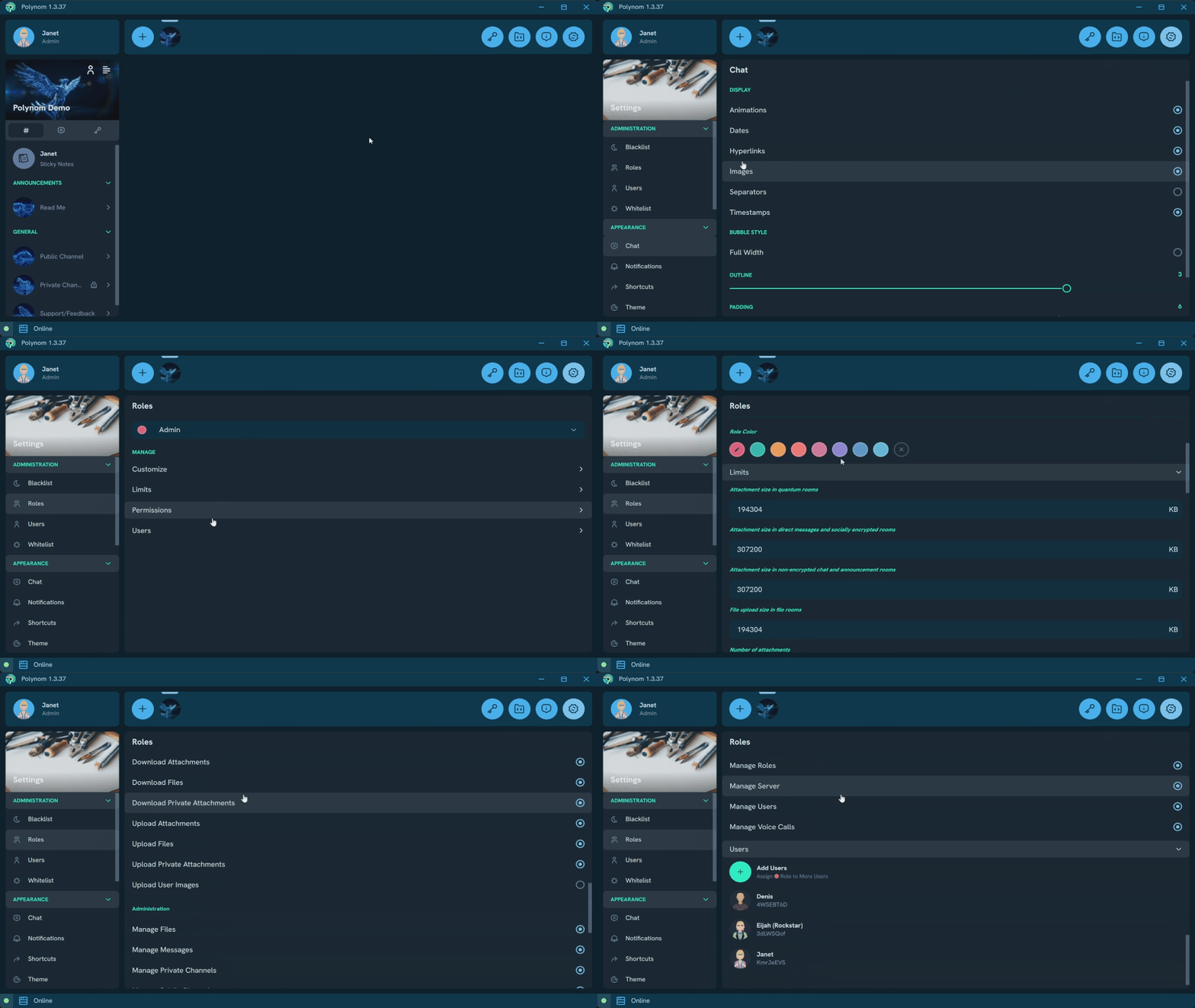
Server Roles are named collections of permissions and limits assigned to one or more Users within a server. Rather than configuring Users individually, Admins can use Roles to grant responsibilities and access, restrict what Users can do, and set limits on things like file sizes and message length across groups of Users.
Multiple Roles can be assigned to a single User, with permissions, limits, and Channel access being cumulative.
¶ Permissions and Limits
Each Role contains a configurable set of permissions and limits that determine what Users assigned to that Role can do.
¶ Permissions
¶ Communications
- Send Messages - Allows Users to send Messages in Channel Rooms
- Send Anonymous Messages - Allows Users to send Anonymous Messages in Channel Rooms
- Send Quantum Messages - Allows Users to join and fully interact with Quantum Rooms
- Send Private Messages - Allows Users to send Direct Messages
- Send Notes - Allows Users to send Messages in Saved Messages and create Sticky Notes
- Voice Calls - Allows Users to join Call Rooms
¶ Sharing
- Download Attachments - Allows Users to open and download Channel Room Attachments
- Download Files - Allows Users to download File Room content
- Download Private Attachments - Allows Users to open and download Direct Message Attachments
- Upload Attachments - Allows Users to upload Channel Room Attachments
- Upload Files - Allows Users to upload Files to File Rooms and Sticky Notes
- Upload Private Attachments - Allows Users to upload Attachments to Direct Messages and Saved Messages
- Upload User Images - Allows a User's custom Profile Image to be displayed on the server
¶ Administration
- Manage Files - Allows Users to rename and delete File Room content
- Manage Messages - Allows Users to delete Channel Room Messages
- Manage Private Channels - Allows Users to create Private Channels and manage Private Channels they have access to
- Manage Public Channels - Allows Users to create and manage Public Channels
- Manage Roles - Allows Users to create and manage Server Roles
- Manage Server - Allows Users to manage Server settings, including the Blacklist and Whitelist
- Manage Users - Allows Users to delete Users from the User List and assign Profile Photos to other Users
- Manage Voice Calls - (Coming soon)
¶ Limits
- Quantum Room Attachment size - Maximum size of individual Attachment uploads in Quantum Rooms
- Direct Messages and Socially Encrypted Rooms Attachment size - Maximum size of individual Attachment uploads in Direct Messages and Socially Encrypted Rooms
- Non-Encrypted Chat and Announcement Rooms Attachment size - Maximum size of individual Attachment uploads in non-Encrypted Chat and Announcement Rooms
- File Room File Upload size - Maximum size of individual File uploads in File Rooms
- Number of Attachments - Maximum number of Attachments per Message across all Chat types
- Message size - Maximum number of characters per Message across all Chat types
Note: Setting any individual limit to 0 removes the limit entirely.
¶ Role Settings
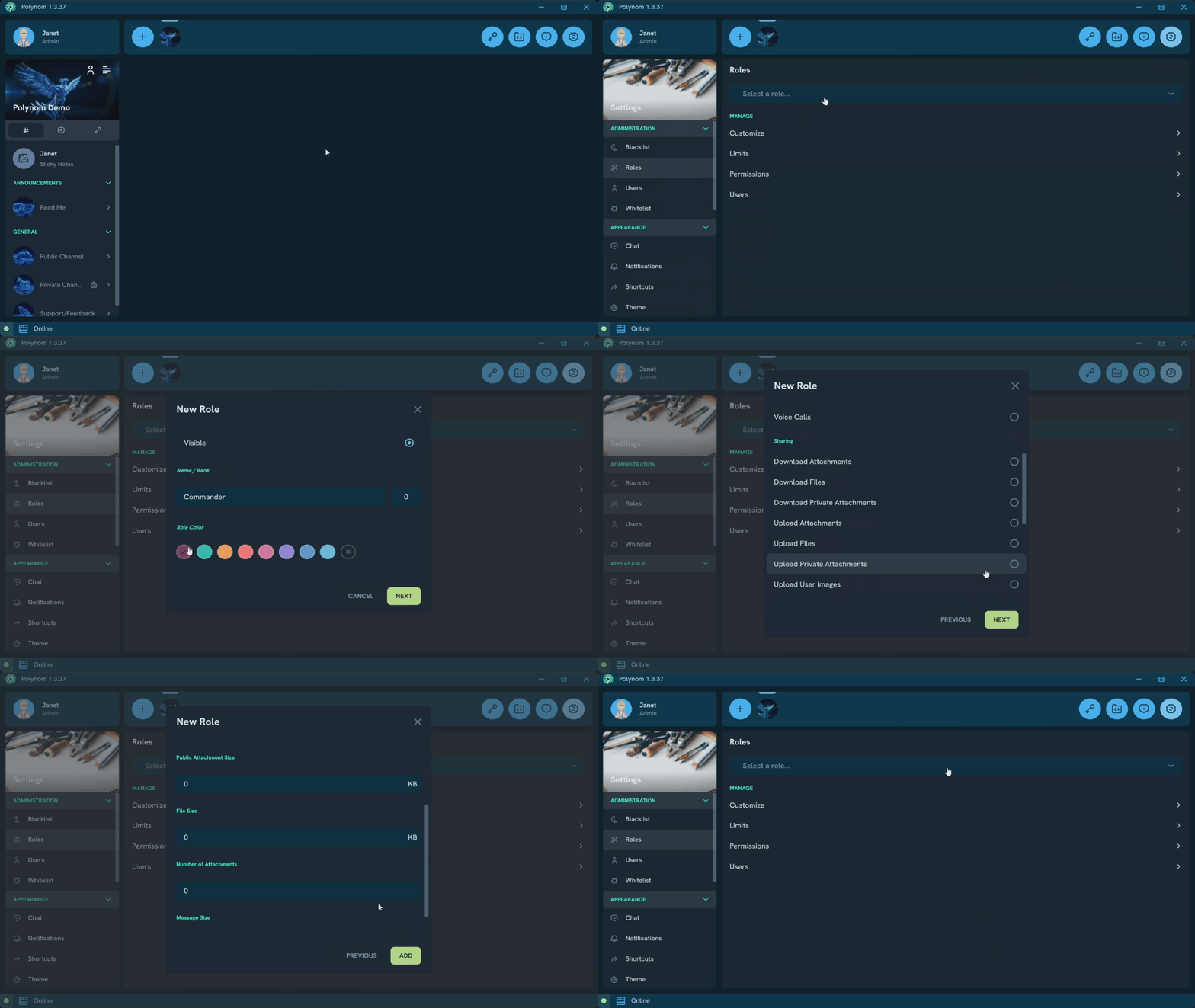
When creating or editing a Role, three additional settings are available alongside permissions and limits:
¶ Rank
Roles can be assigned a Rank to determine their ordering in all Role dropdowns and in the Role category order on the User List. As with Channels and Rooms, Ranks only determine ordering among other Ranked Roles.
¶ Color
Each Role is assigned a random color by default, which can be customized at any time. The Role color appears in the User List in front of Role category names, and in the Role dropdown on the Manage Roles page.
¶ Visibility
A Role's Visibility setting determines whether the Role is visible to Users without the Manage Roles Permission. When Visibility is disabled, those Users will not know the Role exists, nor will it show on the User Details page of any User it is assigned to. Users who are assigned the Role can still see it regardless of this setting.
¶ Bundled Roles
Every Polynom server comes with three built in Roles: Default, User, and Admin. The Admin and User Roles work like any custom Role and share the same customization options. The Default Role is unique and behaves differently, as described below.
| Permissions | Default | User | Admin |
|---|---|---|---|
| Send Messages | ✓ | ✓ | ✓ |
| Send Anonymous Messages | X | ✓ | ✓ |
| Send Quantum Messages | ✓ | ✓ | ✓ |
| Send Private Messages | ✓ | ✓ | ✓ |
| Send Notes | X | X | ✓ |
| Voice Calls | ✓ | ✓ | ✓ |
| Download Attachments | ✓ | ✓ | ✓ |
| Download Files | ✓ | ✓ | ✓ |
| Download Private Attachments | ✓ | ✓ | ✓ |
| Upload Attachments | ✓ | ✓ | ✓ |
| Upload Files | ✓ | ✓ | ✓ |
| Upload Private Attachments | ✓ | ✓ | ✓ |
| Upload User Images | X | X | ✓ |
| Manage Files | - | X | ✓ |
| Manage Messages | - | X | ✓ |
| Manage Private Channels | - | X | ✓ |
| Manage Public Channels | - | X | ✓ |
| Manage Roles | - | X | ✓ |
| Manage Server | - | X | ✓ |
| Manage Users | - | X | ✓ |
| Manage Voice Calls | - | X | ✓ |
| Limits | Default | User | Admin |
|---|---|---|---|
| Attachment size in Quantum Rooms (KB) | 16,384 | 1,048,576 | 4,194,304 |
| Attachment size in Direct Messages and Socially Encrypted Rooms (KB) | 2,048 | 6,144 | 30,720 |
| Attachment size in non-Encrypted Chat and Announcement Rooms (KB) | 6,144 | 16,384 | 30,720 |
| File Upload size in File Rooms (KB) | 16,384 | 1,048,576 | 4,194,304 |
| Number of Attachments | 1 | 4 | 8 |
| Message size (B) | 2,048 | 8,192 | 16,384 |
¶ Default Role
Any User who joins a server, or who has all of their custom Roles removed, is automatically assigned the Default Role. It is the Role every User falls back to in the absence of any other assigned Role.
The Default Role is unique in that it cannot be manually assigned, cannot be deleted, and cannot be granted Administration Permissions. For administrative purposes, a separate Role must be assigned to the User.
Because the Default Role only applies in the absence of other Roles, assigning any Role to a User will immediately replace it. Unlike other Roles, whose Permissions and Limits stack cumulatively, the Default Role's Permissions and Limits do not apply once any other Role has been assigned.