¶ Channels & Rooms
¶ What are Channels?
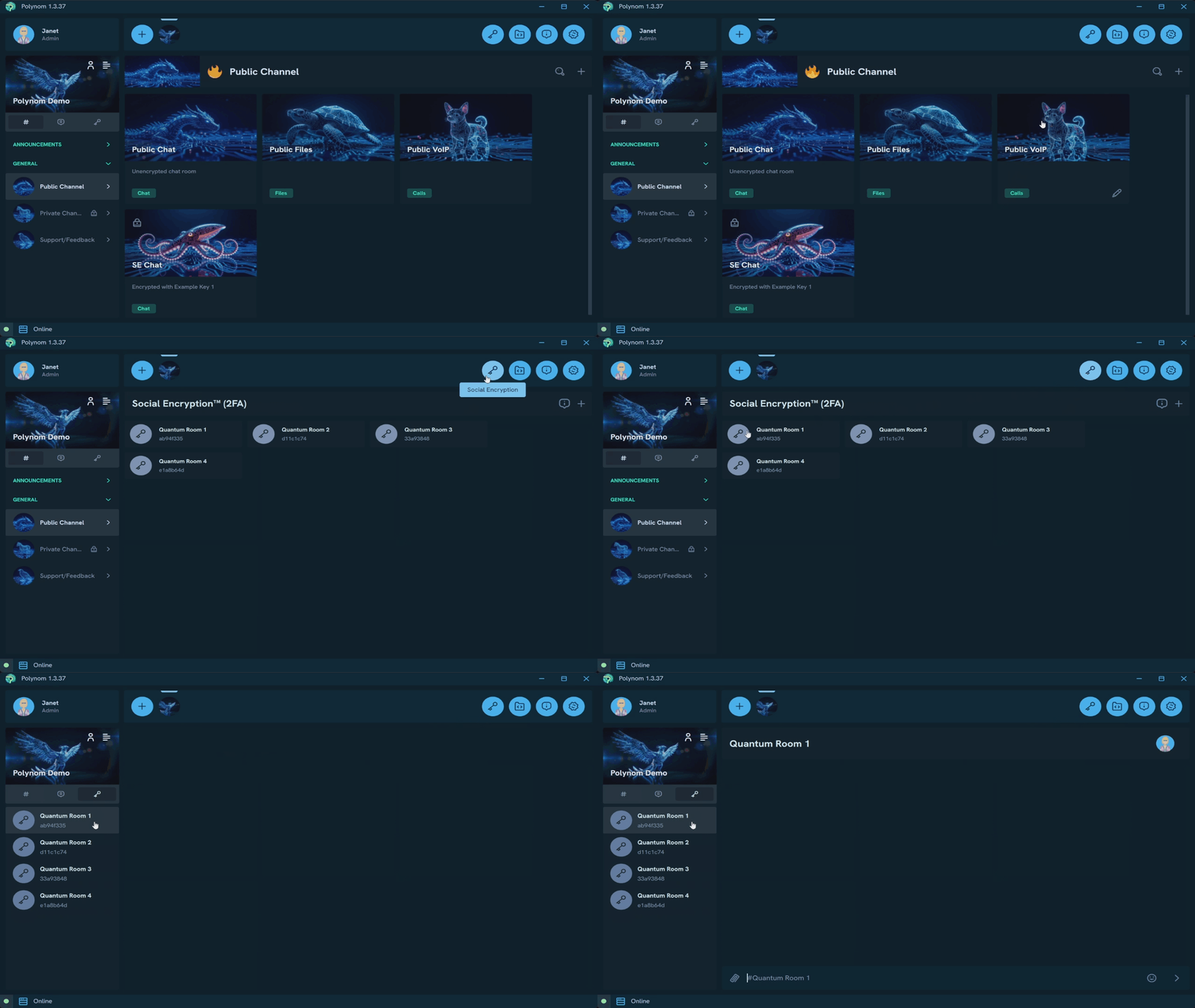
Channels in Polynom are containers that group Rooms around a shared purpose. They provide structure, context and navigational clarity to servers. Inside a Channel, multiple Rooms serve different modes of collaboration, all centered around the same topic or goal.
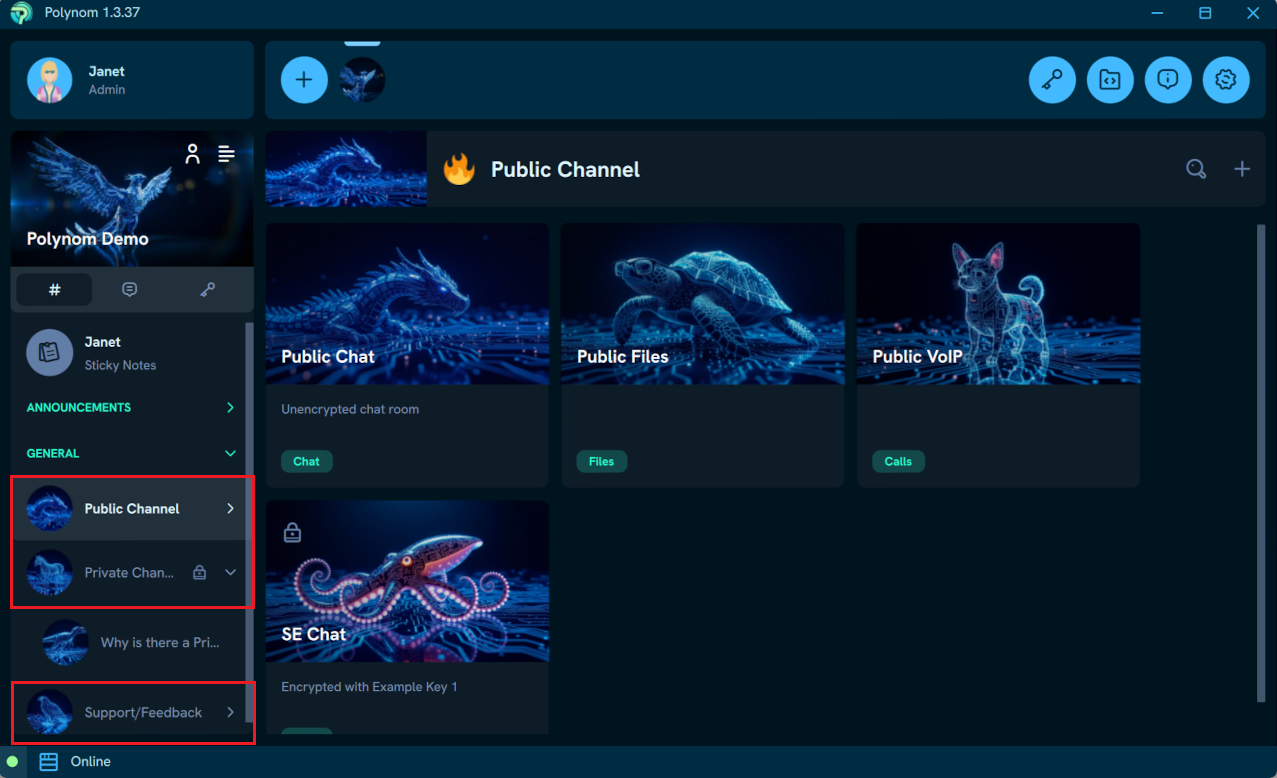
Channels can be ordered using the Channel Rank feature and grouped into categories using the Channel Category feature.
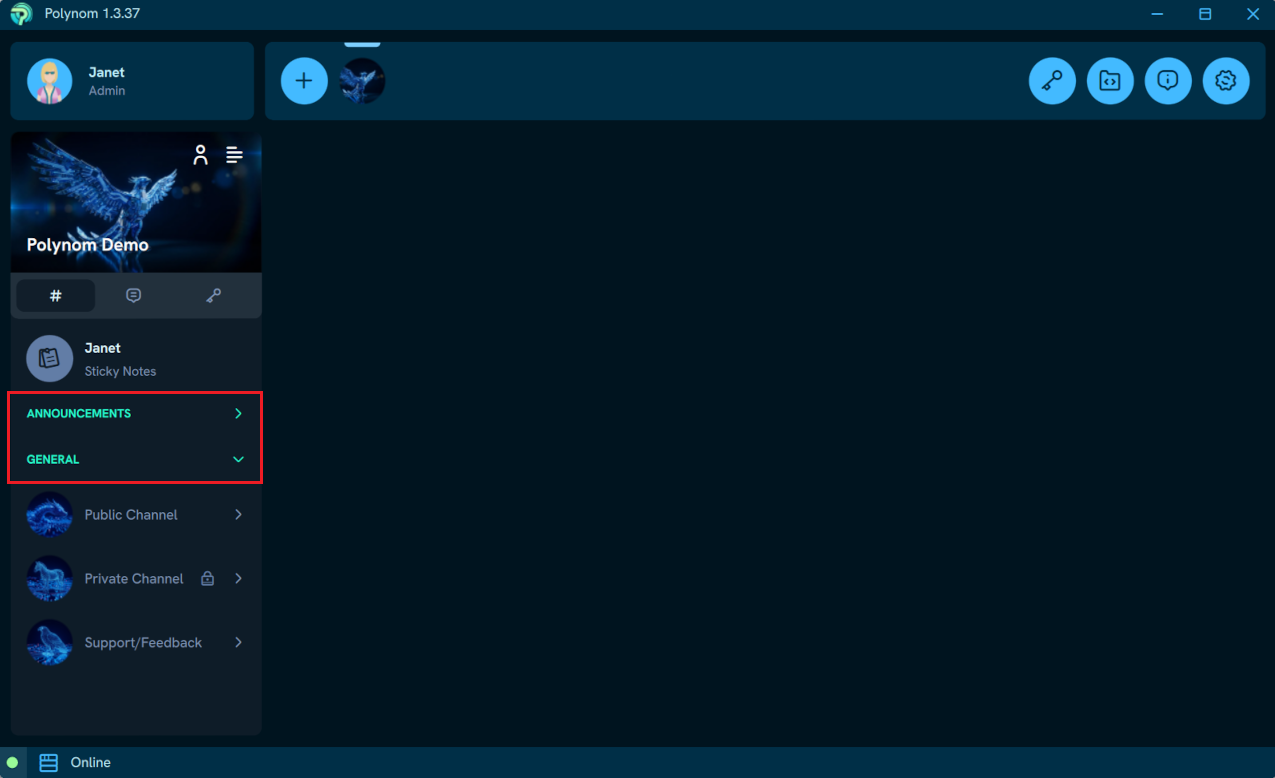
Channels can also be set to Private, restricting access to select Users and Roles only.
¶ Creating Channels
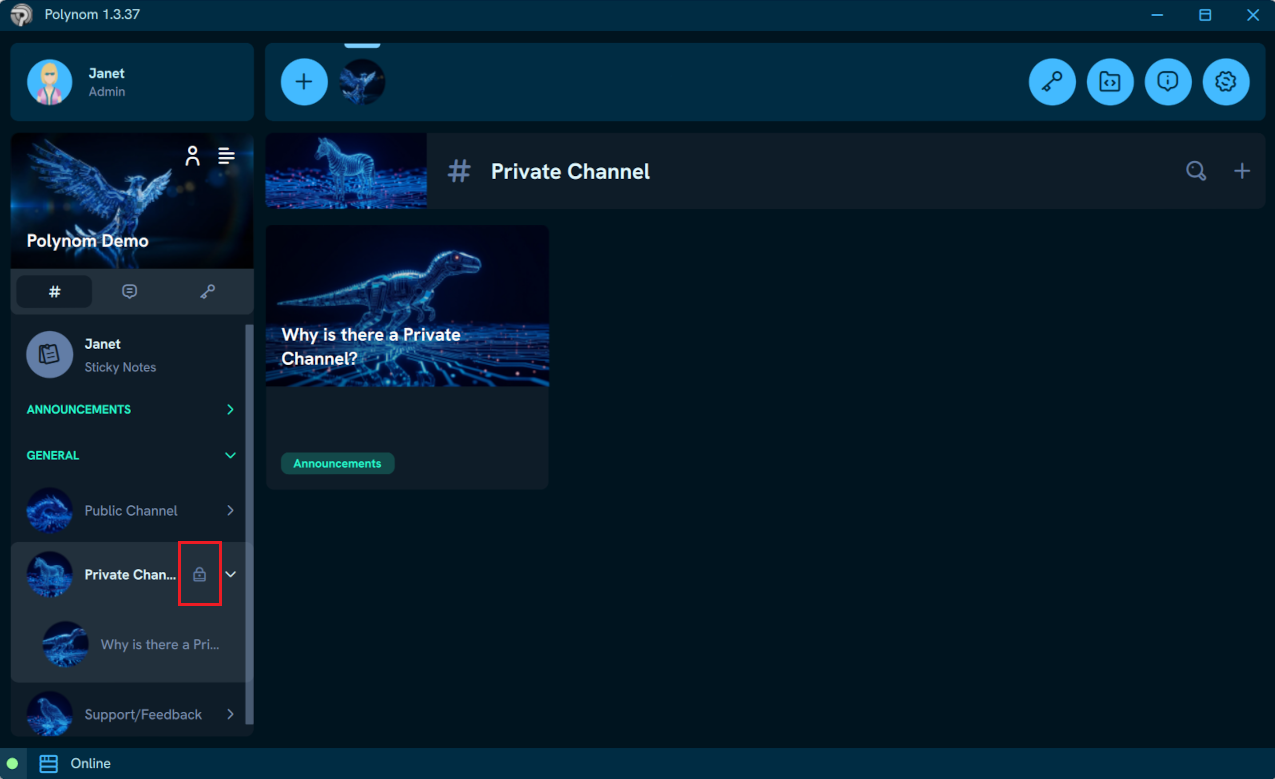
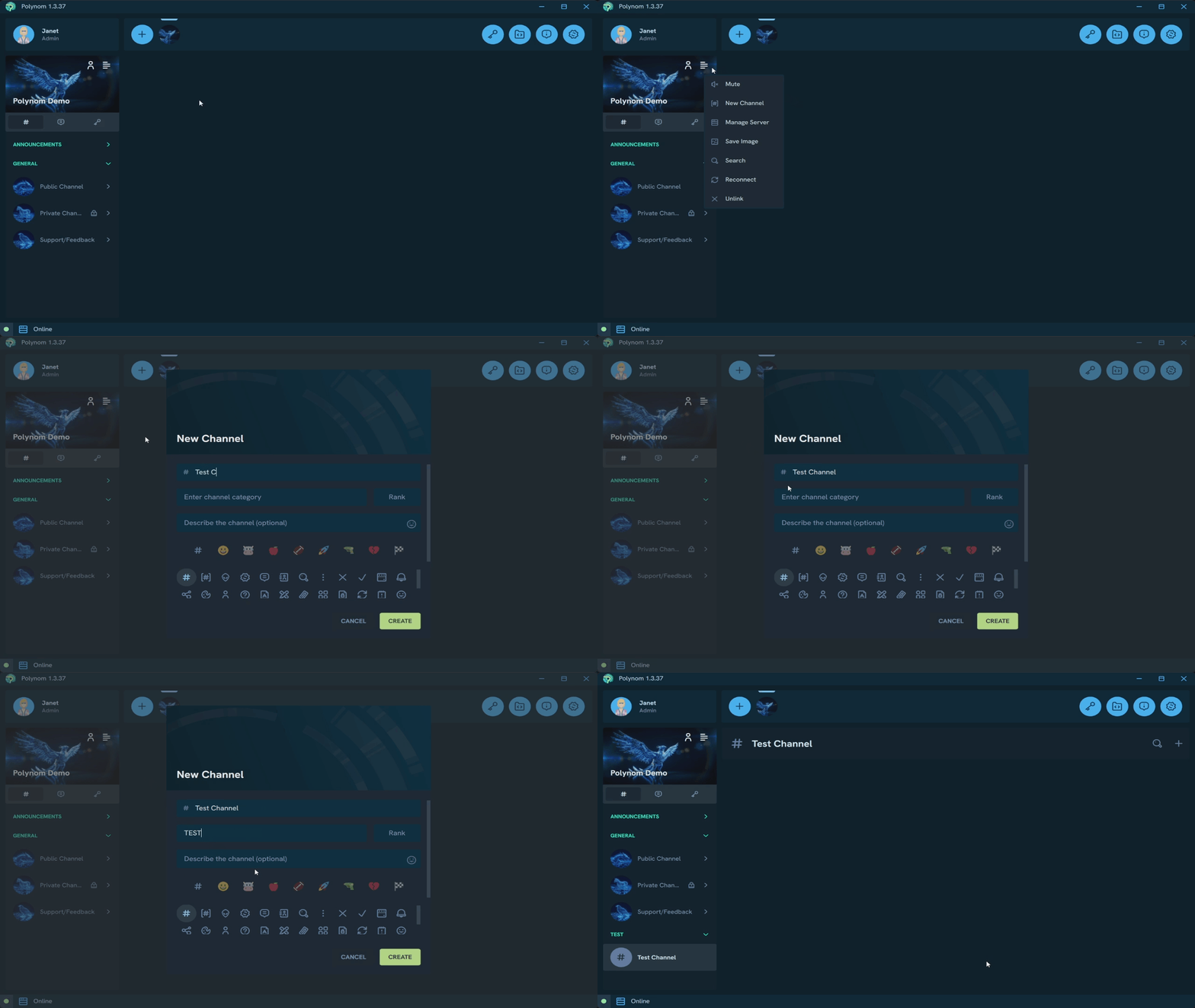
Users with the Manage Public Channel or Manage Private Channel Permission can create a new Channel by opening the Server menu and pressing New Channel. You will be prompted to enter a Channel Name, and optionally assign an image or emoji/glyph, a Category, a Rank, a Description, and a Privacy setting.
¶ Managing Channels
¶ Images and glyphs
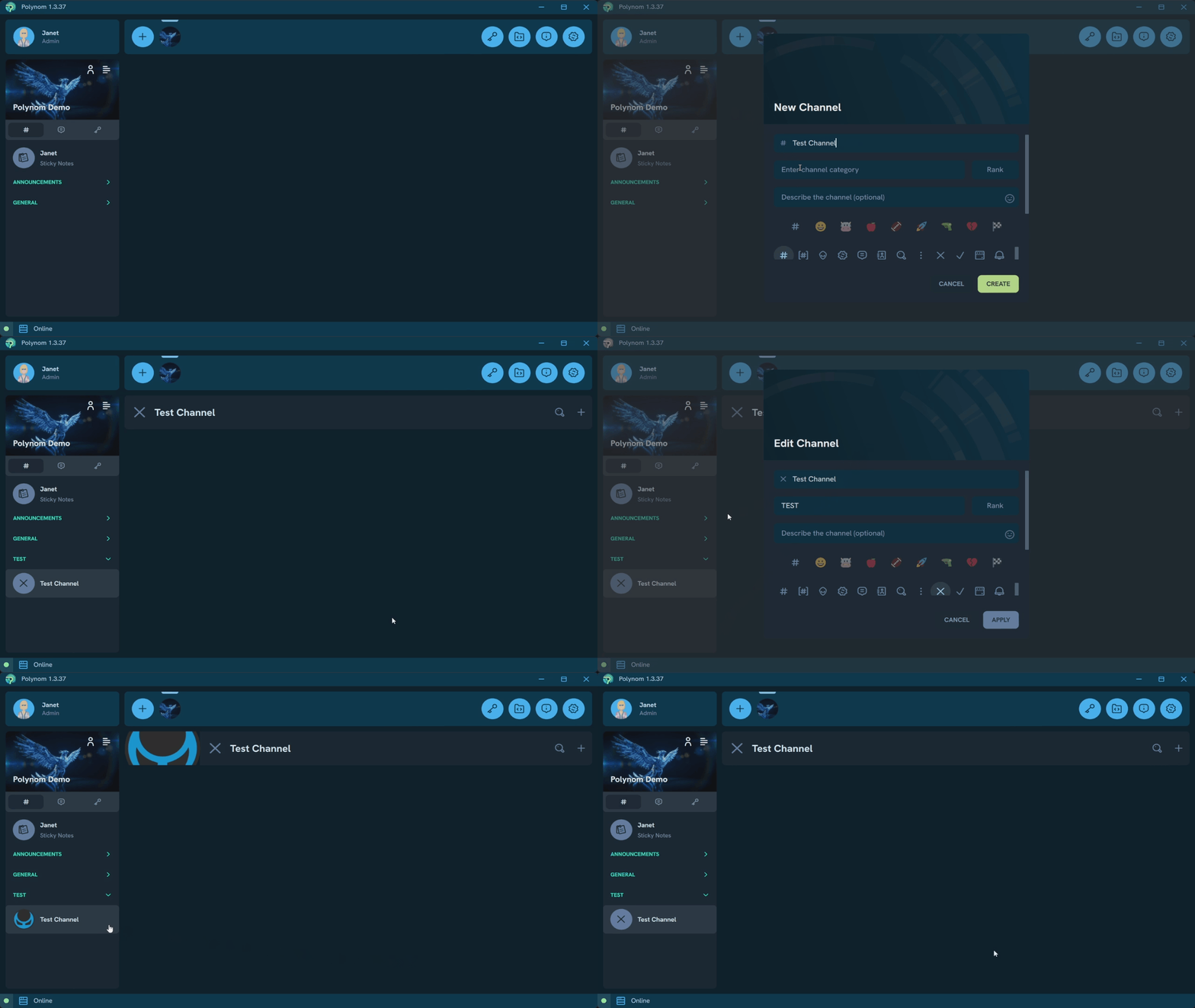
When creating or editing a Channel, you can assign it a glyph or emoji by selecting your preferred one in the New/Edit Channel dialog. Alternatively you can assign an image by pressing the image area and selecting a file. Assigning an image will always overwrite the chosen emoji or glyph. To replace a Channel image, you can either assign a new one the same way you set the original, or open the image context menu and select Edit. To remove it entirely, open the image context menu and select Remove.
¶ Categories
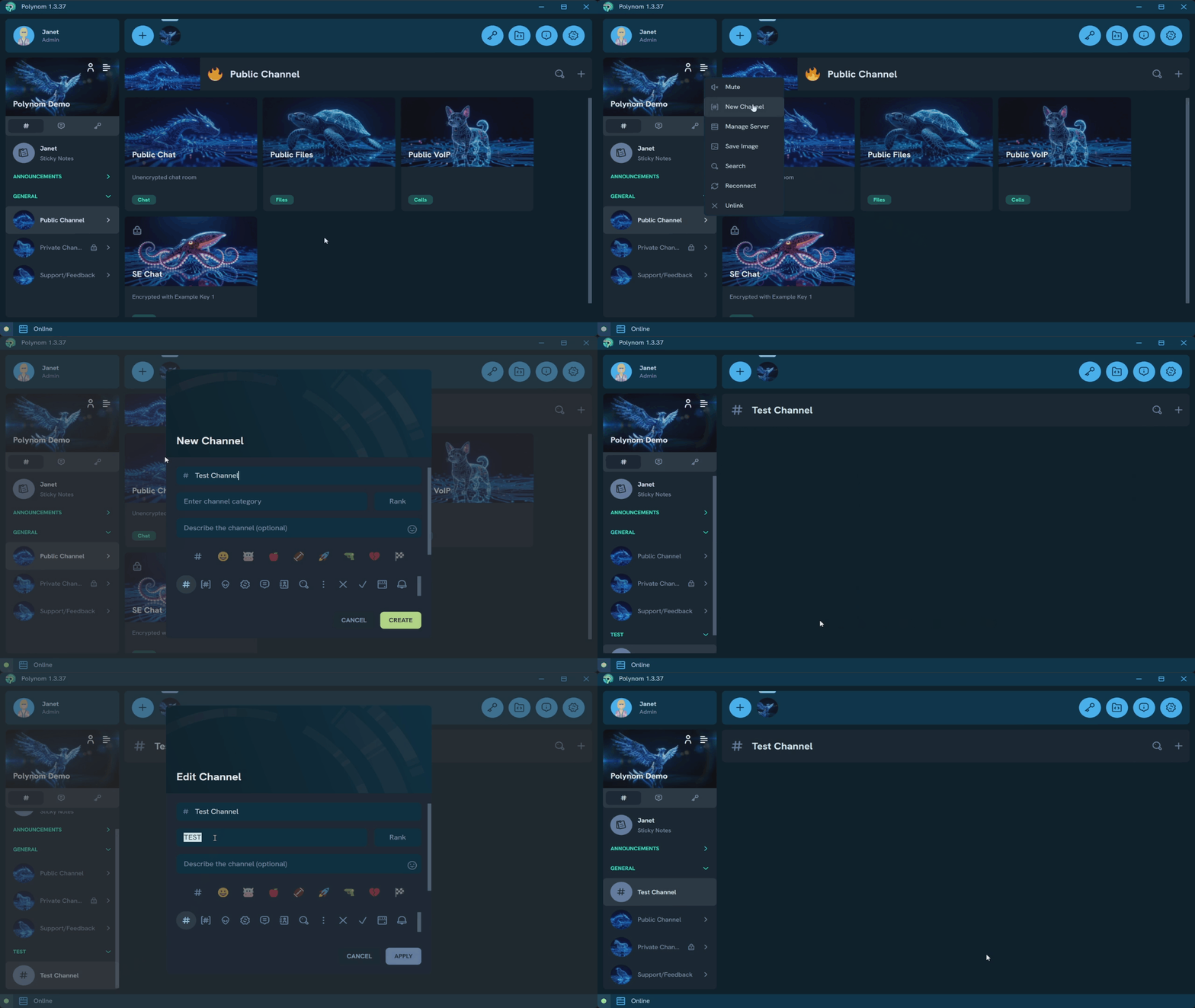
To assign a Channel to a Category, enter the desired Category name in the Category field of the New/Edit Channel dialog. If the Category does not exist yet, it will be created automatically and the Channel will be assigned to it.
¶ Rank
Channels can be assigned a Rank to determine their position in the Channel list. Note that Rank only determines the order of a Channel among other Ranked Channels.
¶ Privacy
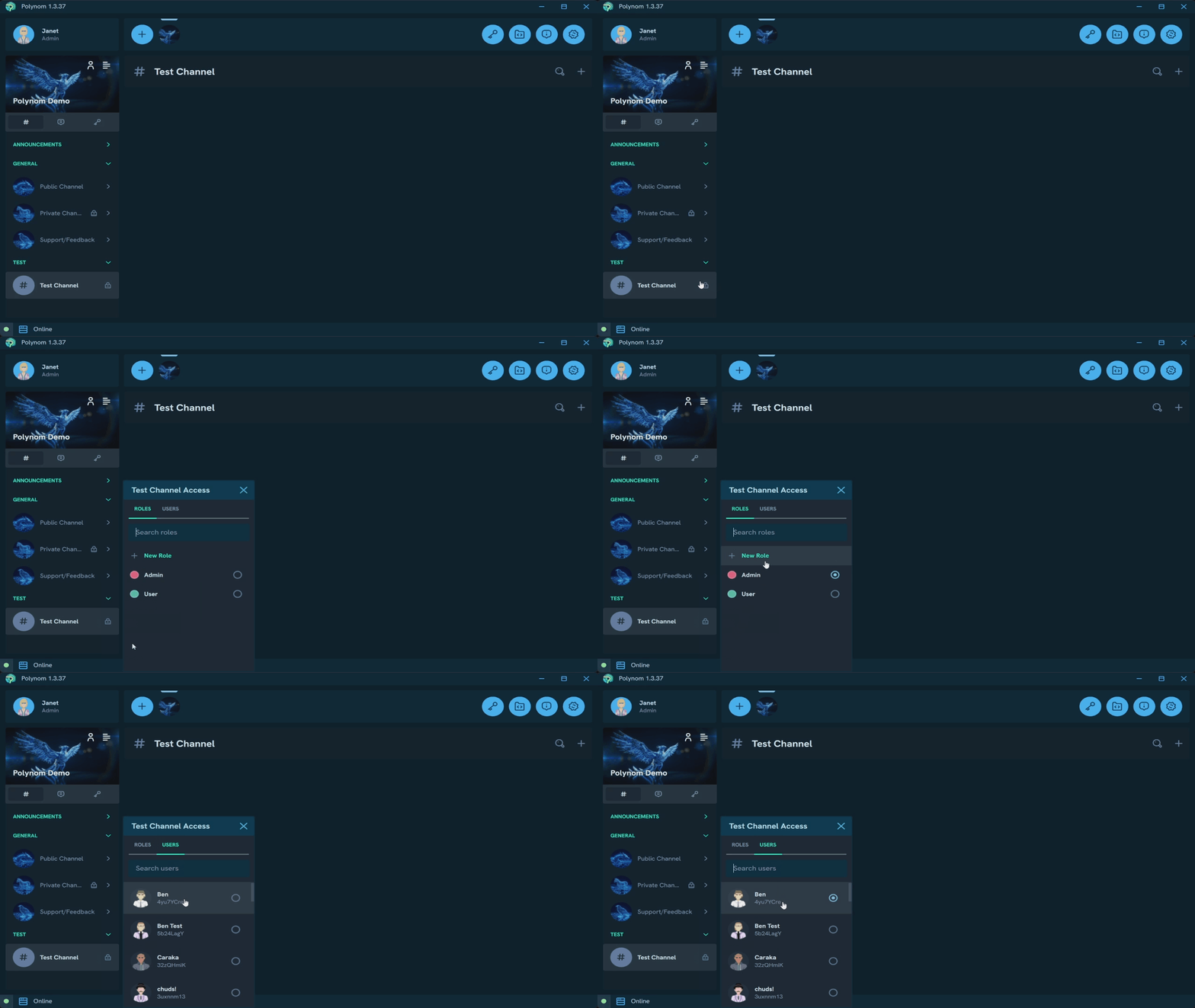
To restrict a Channel to select Users and Roles, set the Channel Privacy to Private in the New/Edit Channel dialog. This enables the Manage Access menu, where access can be granted or removed on a per User or per Role basis.
¶ What are Rooms?
Rooms are purpose built environments optimized for a specific mode of interaction. Each Room type separates communication into one of four distinct environments: Chat, Files, Calls and Announcements.
Chat Rooms - The primary environment for text and attachment based interactions
File Rooms - The primary environment for file sharing
Call Rooms - Persistent, drop in audio environments within a Channel
Announcement Rooms - Broadcast only environments where only Channel Admins can post
¶ Creating Rooms
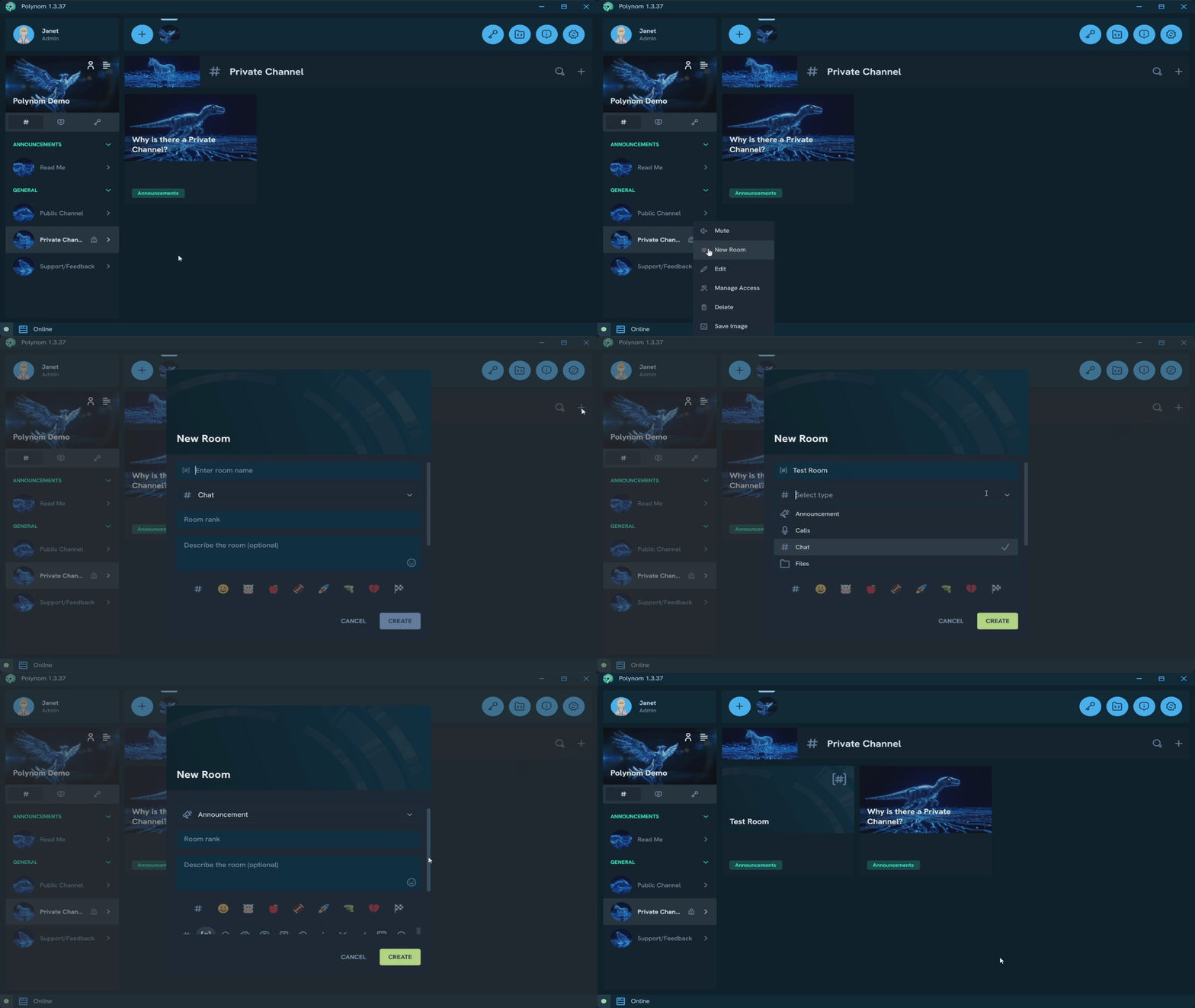
Users with the Manage Public Channel or Manage Private Channel Permission and access to a Channel can create Rooms within it by opening the Channel menu or the Channel's Room View and pressing New Room. You will be prompted to choose a Room Name and Room type, and optionally assign an image or emoji/glyph, a Rank, a Description, and a Social Encryption Key.
¶ Managing Rooms
Room images and glyphs work the same way as Channels. Assign a glyph or emoji by selecting it in the New/Edit Room dialog, or assign an image by pressing the image area. Assigning an image overwrites the emoji or glyph. To replace a Room image, you can either assign a new one the same way you set up the original, or open the image context menu and select Replace. To remove it entirely, open the image context menu and select Remove.
Note: Once a Room has been created, its type cannot be changed.
¶ Rank
Rooms can be assigned a Rank to determine their position in the Room list. As with Channels, Rank only determines the order among other Ranked Rooms.
¶ Socially Encrypted Rooms
Socially Encrypted Rooms are Rooms encrypted with a Social Encryption Key. Content inside a Socially Encrypted Room is indecipherable to Users who do not have the matching Social Encryption Key. Users without the Social Encryption Key cannot post in the Room, and in the case of Socially Encrypted Calls Rooms, cannot join the call.
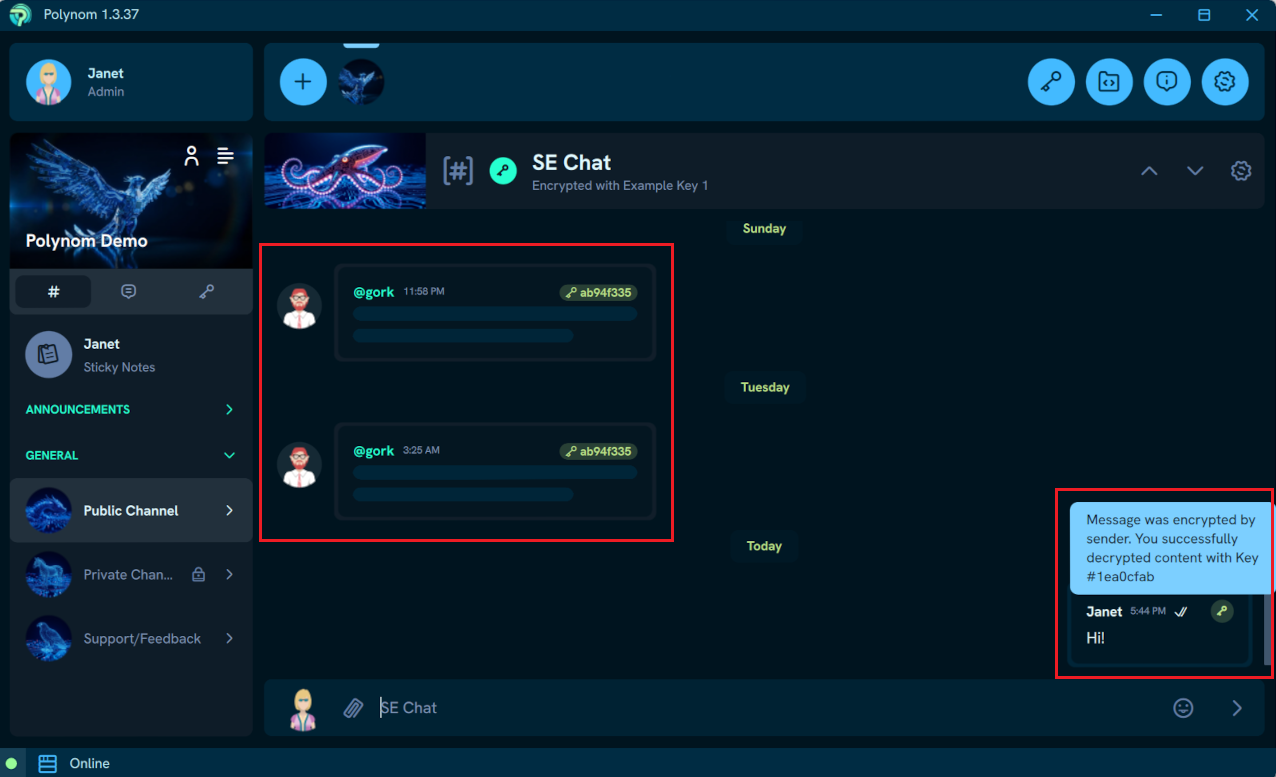
Changing a Socially Encrypted Room's Key updates the key required to post and join calls going forward, but does not affect existing context encrypted under previous keys. This means a Socially Encrypted Room can contain content tied to multiple different keys, each requiring its own key to be readable.
Removing Social Encryption from a Room also does not remove it from existing content.
¶ Creating Socially Encrypted Rooms
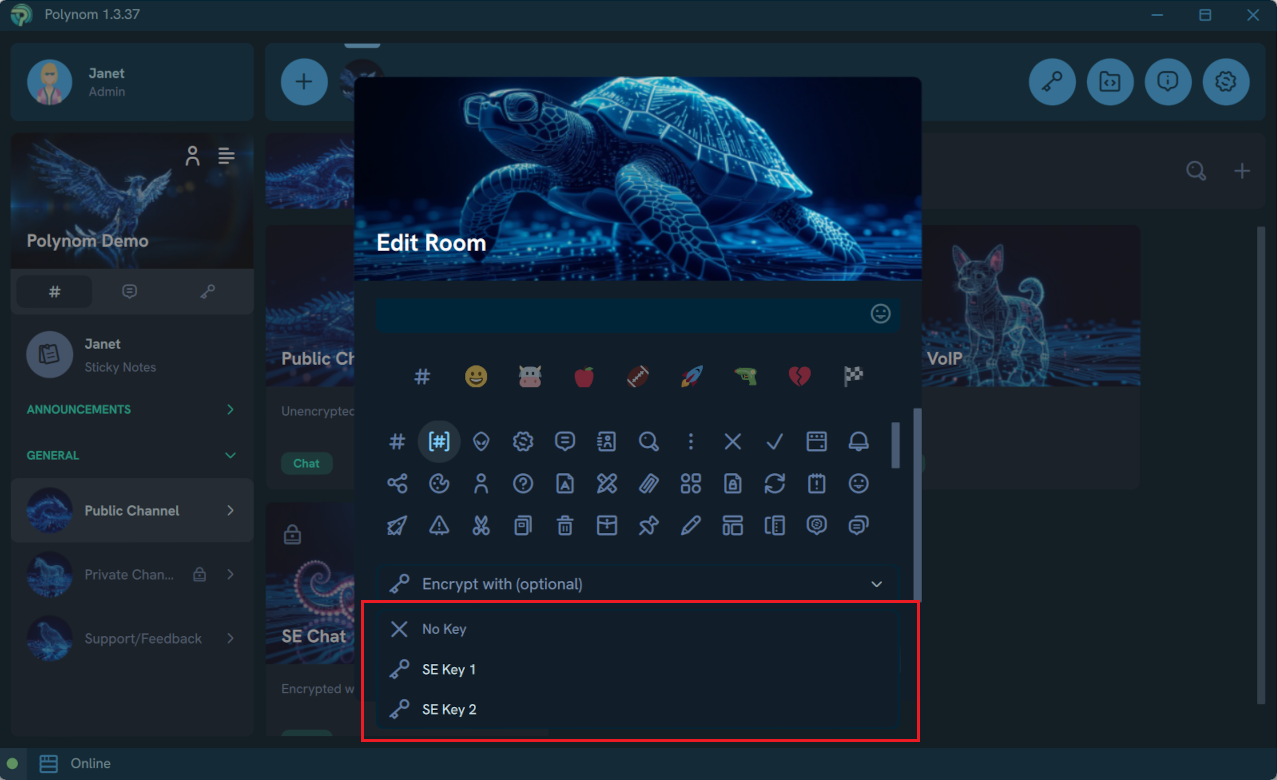
Creating a Socially Encrypted Room, or changing a Room's Social Encryption Key, requires the same permissions as creating a standard Room. In the New/Edit Room dialog, select the Social Encryption Key you want to use for Social Encryption. The Room will then require that key for access and posting.
¶ Quantum Rooms
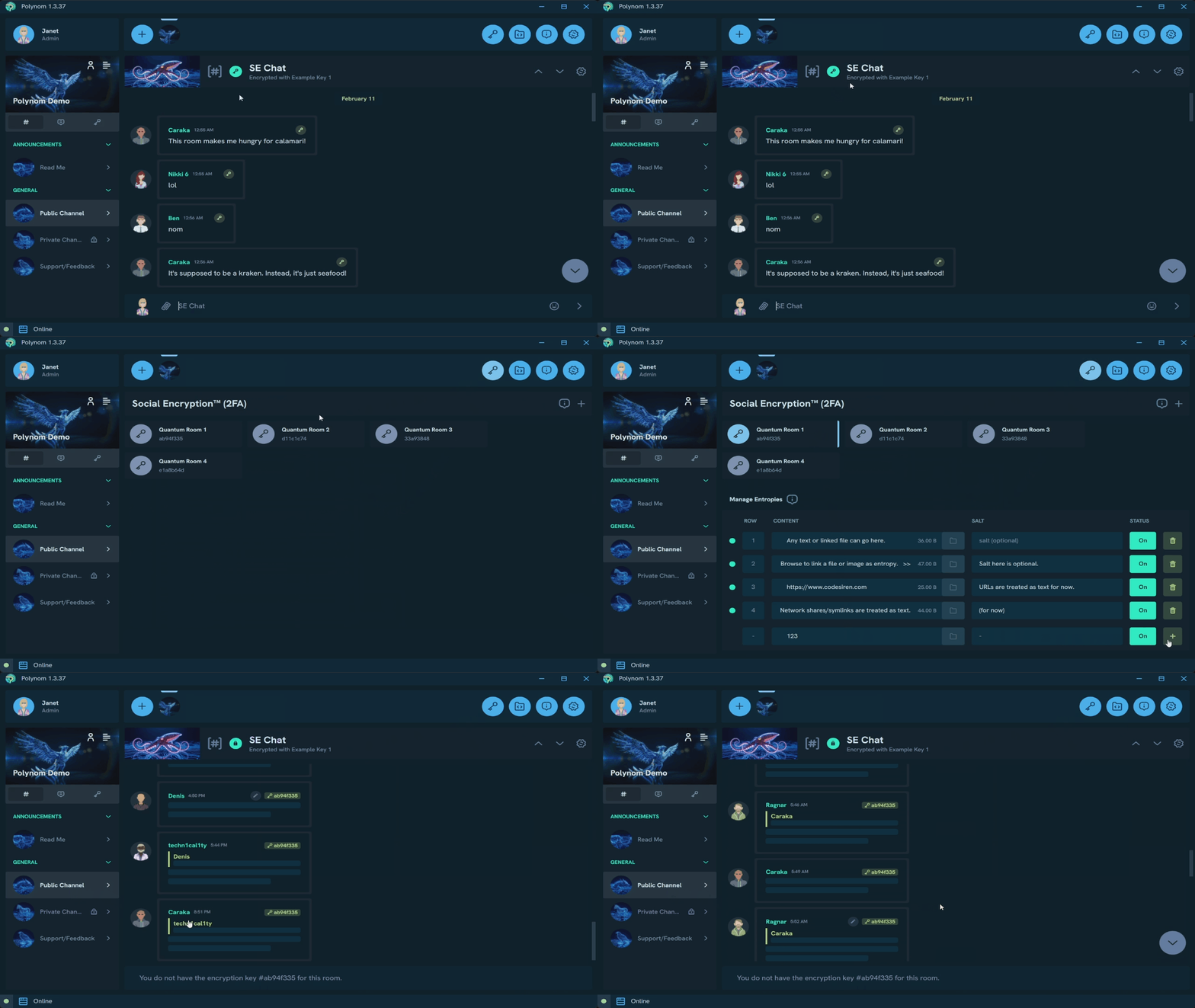
A Quantum Room™ is a unique, temporal and ephemeral type of Room that is never explicitly created, nor are Users ever invited to join one. It exists only as long as at least one User possesses the corresponding Social Encryption Key and has entered the Room, and is visible and accessible only to Users who have that specific Social Encryption Key.
90 seconds after the last Users leaves, the Socially Encrypted content is permanently deleted and the Room ceases to exist. Content can be kept alive by having at least one User remain in the Room, giving Users direct control over when content expires.
For a deeper look at the security model behind Quantum Rooms, see the Quantum Rooms page.
¶ How do I Create or Join a Quantum Room?
To create or join a Quantum Room, you need a Social Encryption Key. Social Encryption Keys are managed on the Social Encryption page. Once your Social Encryption Key is set up, navigate to the Quantum Rooms tab on your server and press your Social Encryption Key to open the corresponding Quantum Room.