¶ Voice Chat
¶ Joining and Leaving Calls
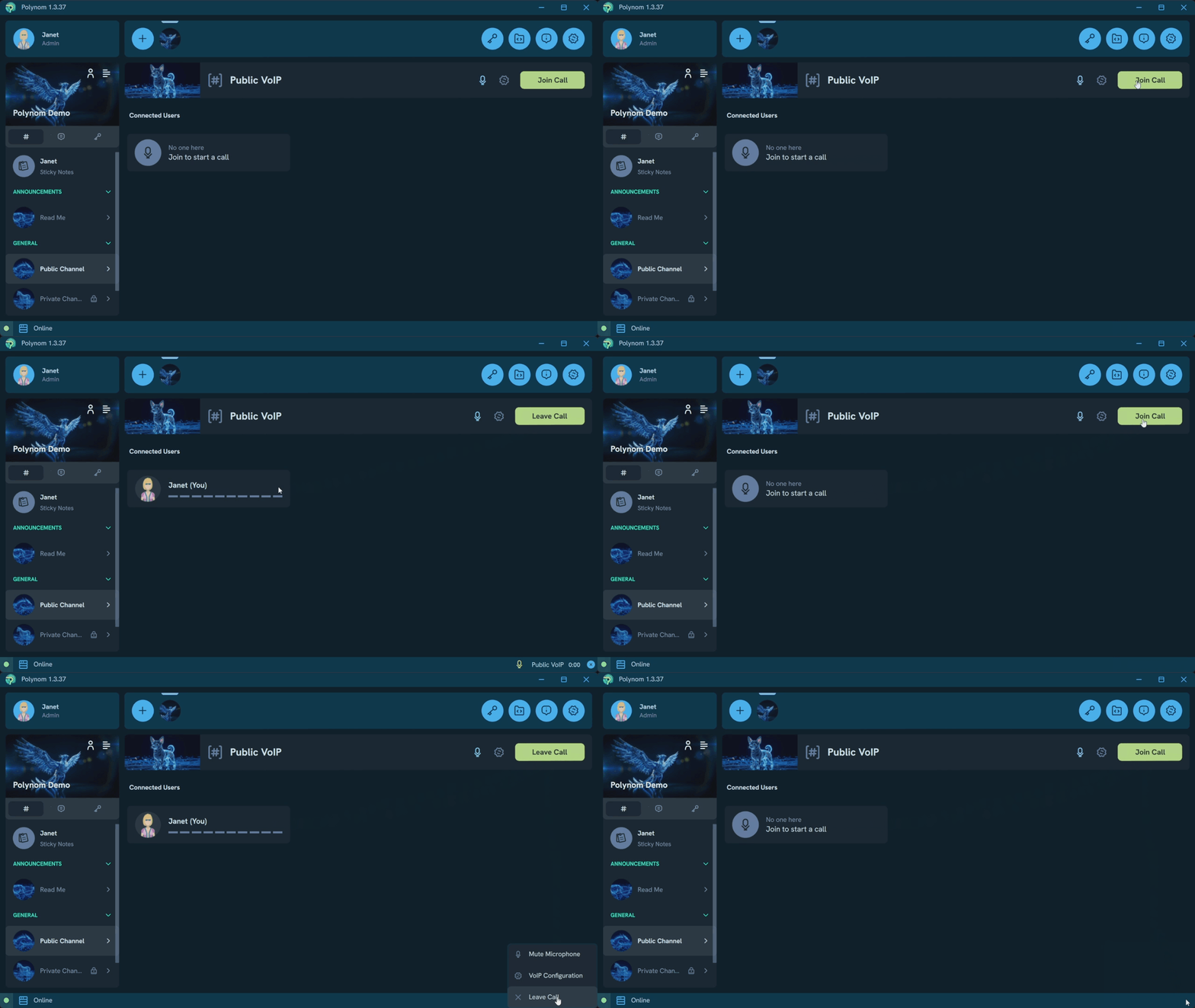
To join a call, open a Call Room and press Join Call in the Room header. If no Users have joined yet, you can also press Join to Start a Call in the Connected Users list.
There are three ways to leave a call:
- Open the Call Room and press Leave Call in the Room header
- Press the X button in the VoIP section of the Status Bar. No need to navigate to the Call Room first
- Right-click the VoIP section of the Status Bar and press Leave Call from the context menu. No need to navigate to the Call Room first
¶ Call Encryption
Every Call Room on Polynom is end-to-end encrypted by default. For an additional layer of security, a Social Encryption Key can be applied to a Call Room, giving participants a user controlled layer of E2EE that the server itself cannot access. See Are VoIP calls encrypted? in the FAQ for more detail.
¶ Audio Configuration
The Audio Configuration page in Settings gives you control over how Polynom handles your audio input and output during calls.
¶ Echo Cancellation
Echo Cancellation reduces echo picked up by your microphone during a call. The Filter Length slider adjusts how aggressively echo is filtered (a higher value catches more echo but may affect sound quality).
¶ Sidetone (Hear Yourself)
The Sidetone feature adds you to the call as a second participant, allowing you to hear yourself as others would hear you. Useful for troubleshooting microphone and audio quality issues.
¶ Push to Talk
When Push to Talk is enabled, your microphone is only active while the spacebar is held down. The spacebar is the only supported key for Push to Talk and cannot be changed.
¶ Streaming Bit Rate
The Streaming Bit Rate slider controls the quality of your outgoing audio stream, adjustable between 64 and 512 kb/s. Higher values produce better audio quality at the cost of increased bandwidth usage.
¶ Streaming Buffer Duration
The Streaming Buffer Duration slider controls the size of the audio buffer, adjustable between 1 and 15 seconds. A higher value can help with unstable connections but introduces more latency.
¶ Streaming Frame Rate
The Streaming Frame Rate slider controls how frequently audio frames are sent, adjustable between 5 and 60 ms. Lower values reduce latency but increase the number of packets sent.
¶ Troubleshooting
¶ I can't hear other Users
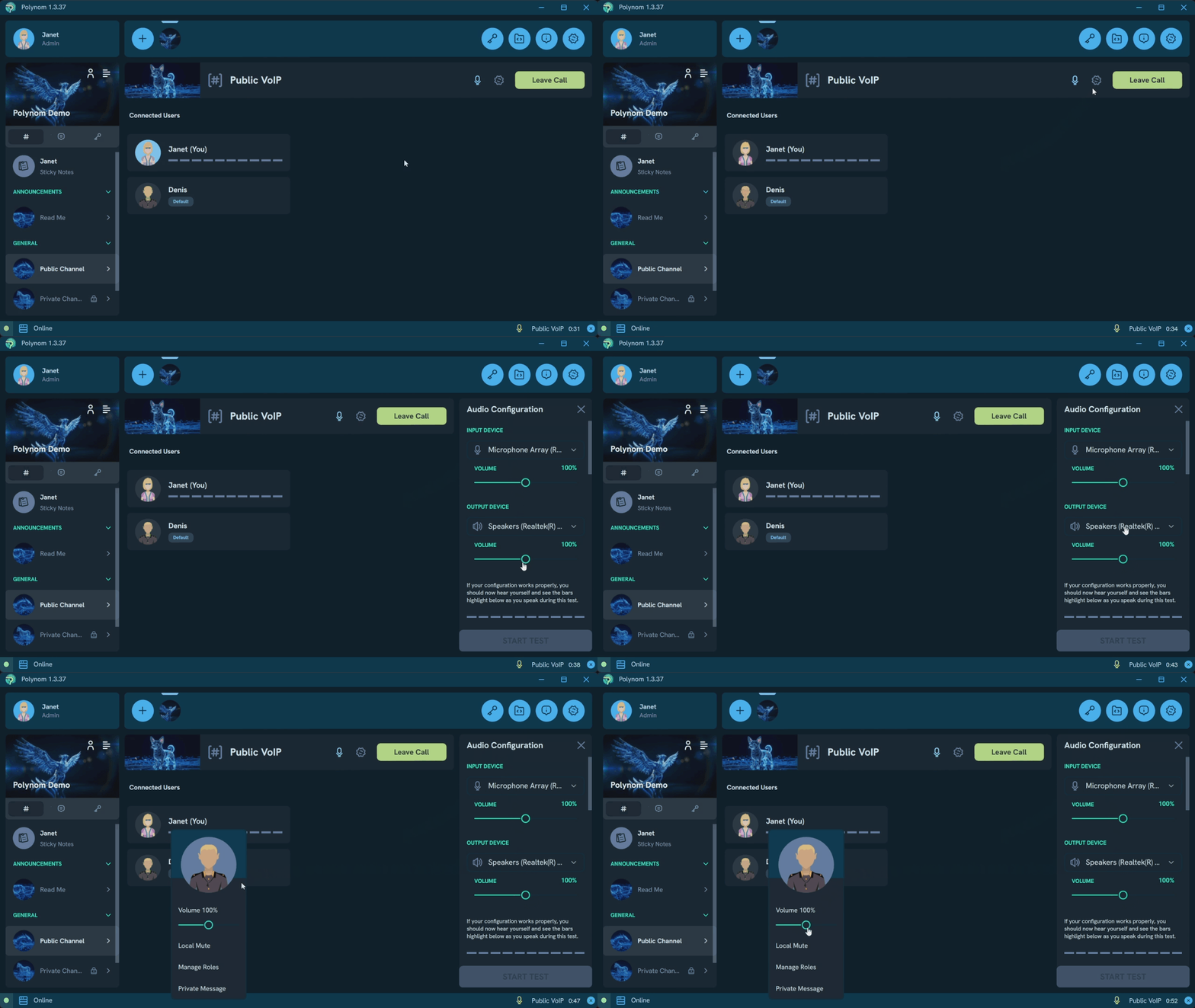
Open the Audio Configuration page and confirm that the correct Output Device is selected in the Output Device dropdown, then check that the Output Device Volume slider is not at zero. If your intended Output Device does not appear in the dropdown, try restarting Polynom.
If the issue only affects specific Users, right-click that User and check your custom volume setting for them.
¶ Other Users can hear me
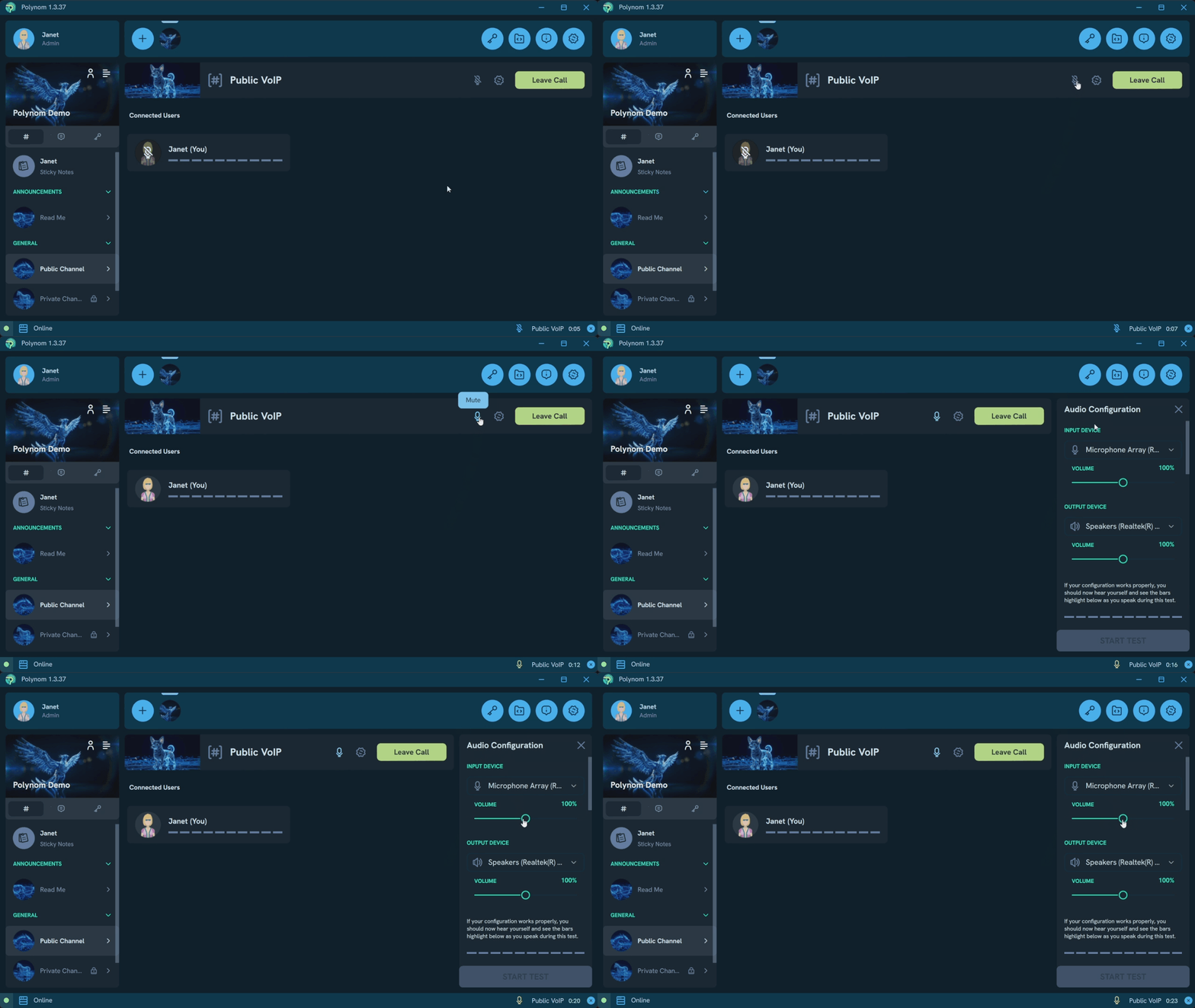
Check the status of the Mute button in the Call Room header first. If that is not the issue, open the Audio Configuration page and confirm that the correct Input Device is selected in the Input Device dropdown, then check that the Input Device Volume slider is not at zero. If your intended Input Device does not appear in the dropdown, try restarting Polynom.