¶ Getting Started with Polynom
This page gives you a quick tour of Polynom's interface - the key areas you'll use every day and how they work together.
¶ The Channel List
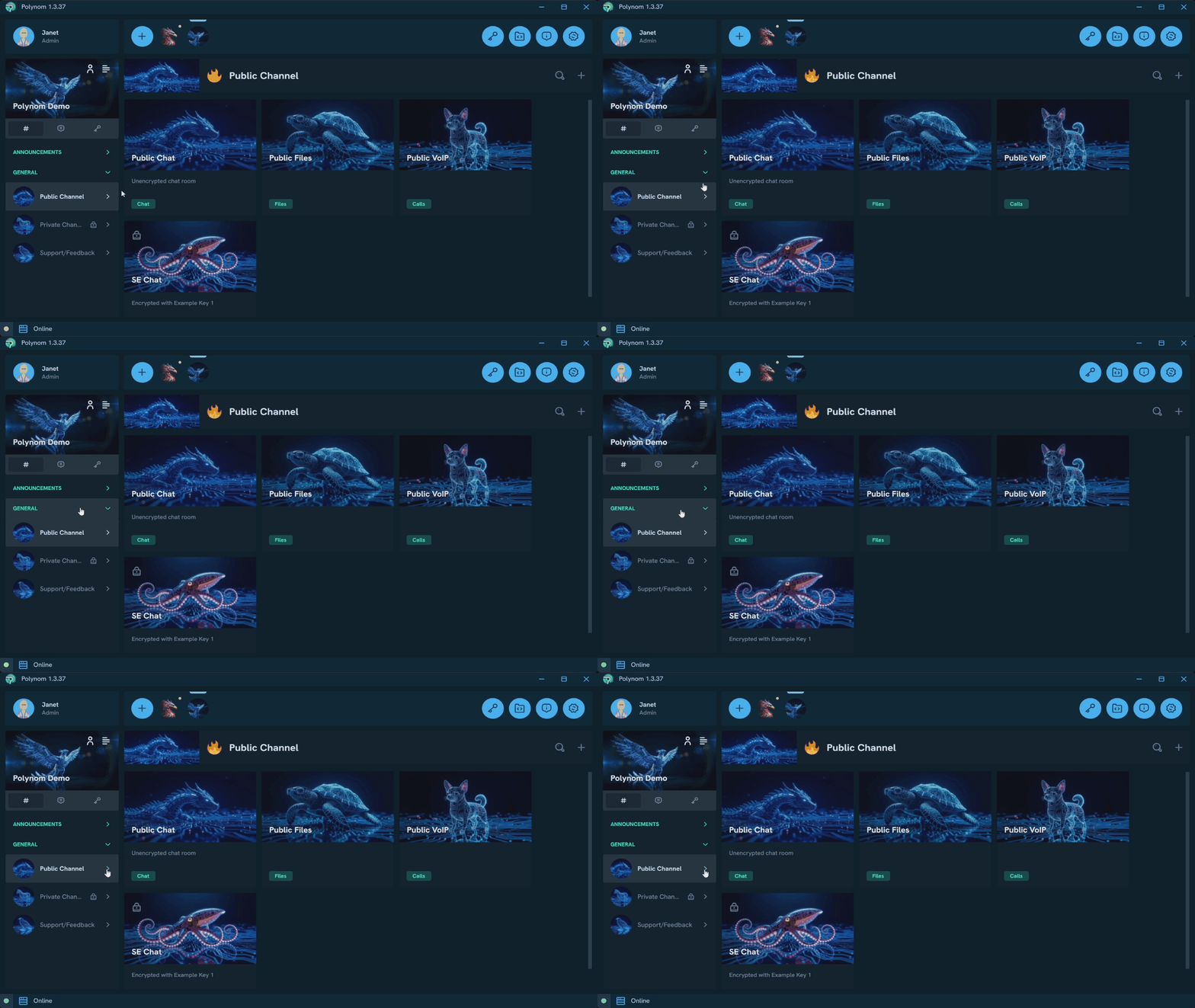
The Channel List is your main navigation panel for moving around a server. Channels are grouped into categories, which you can collapse or expand to keep things tidy.
Channels are containers that group Rooms around a shared purpose. You can expand a Channel in the list for quick access to its Rooms directly from the Left Panel, or simply click a Channel to open its full Room list.
¶ The Toolbar
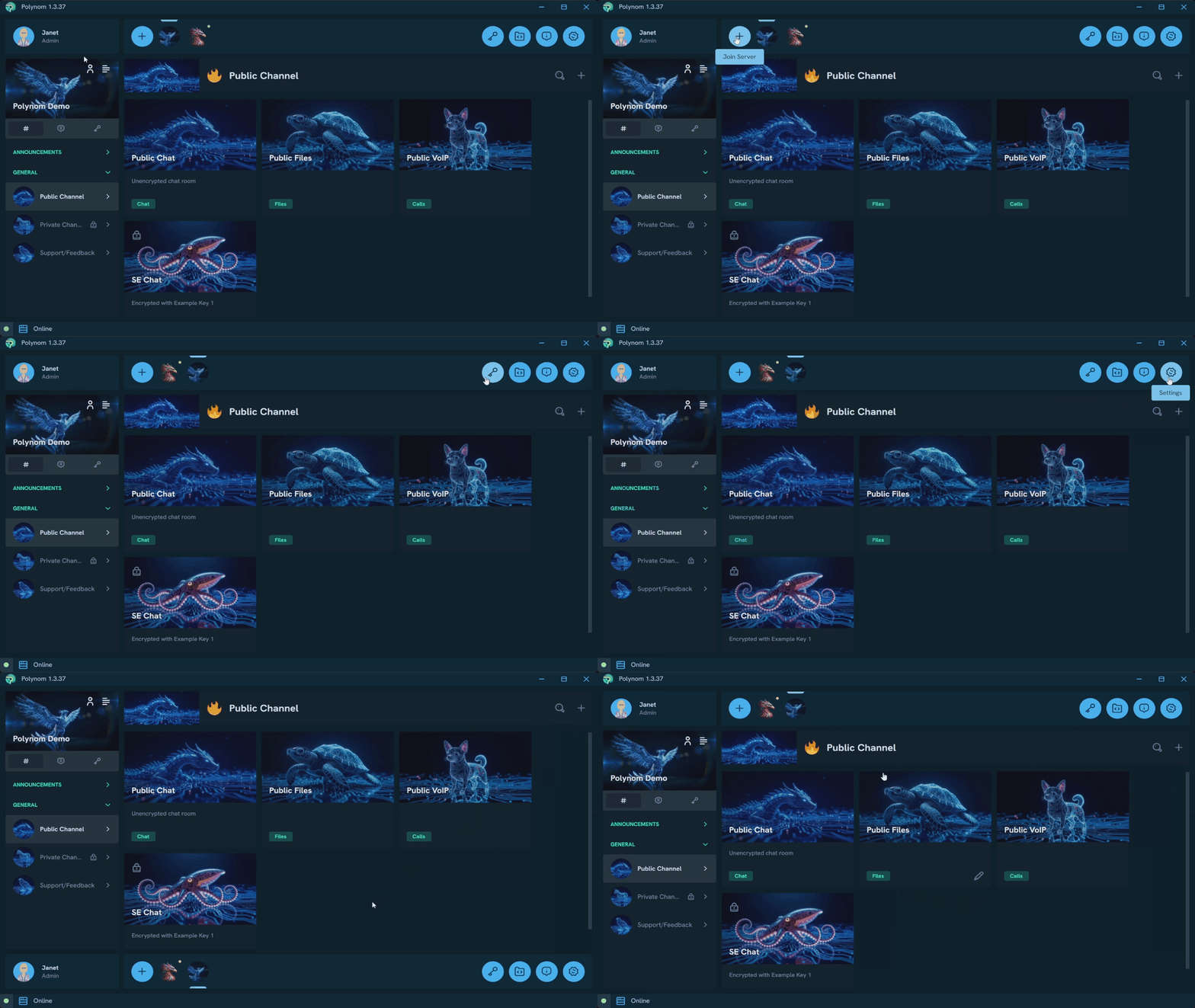
The Toolbar is the main control hub of Polynom. From here you can switch between mutliple Identities and servers, join new servers and access Settings. Key pages like the Transfers page are also reachable directly from the Toolbar. If you prefer a different layout, the Toolbar can be repositioned to any edge of the window.
¶ Servers Tabs
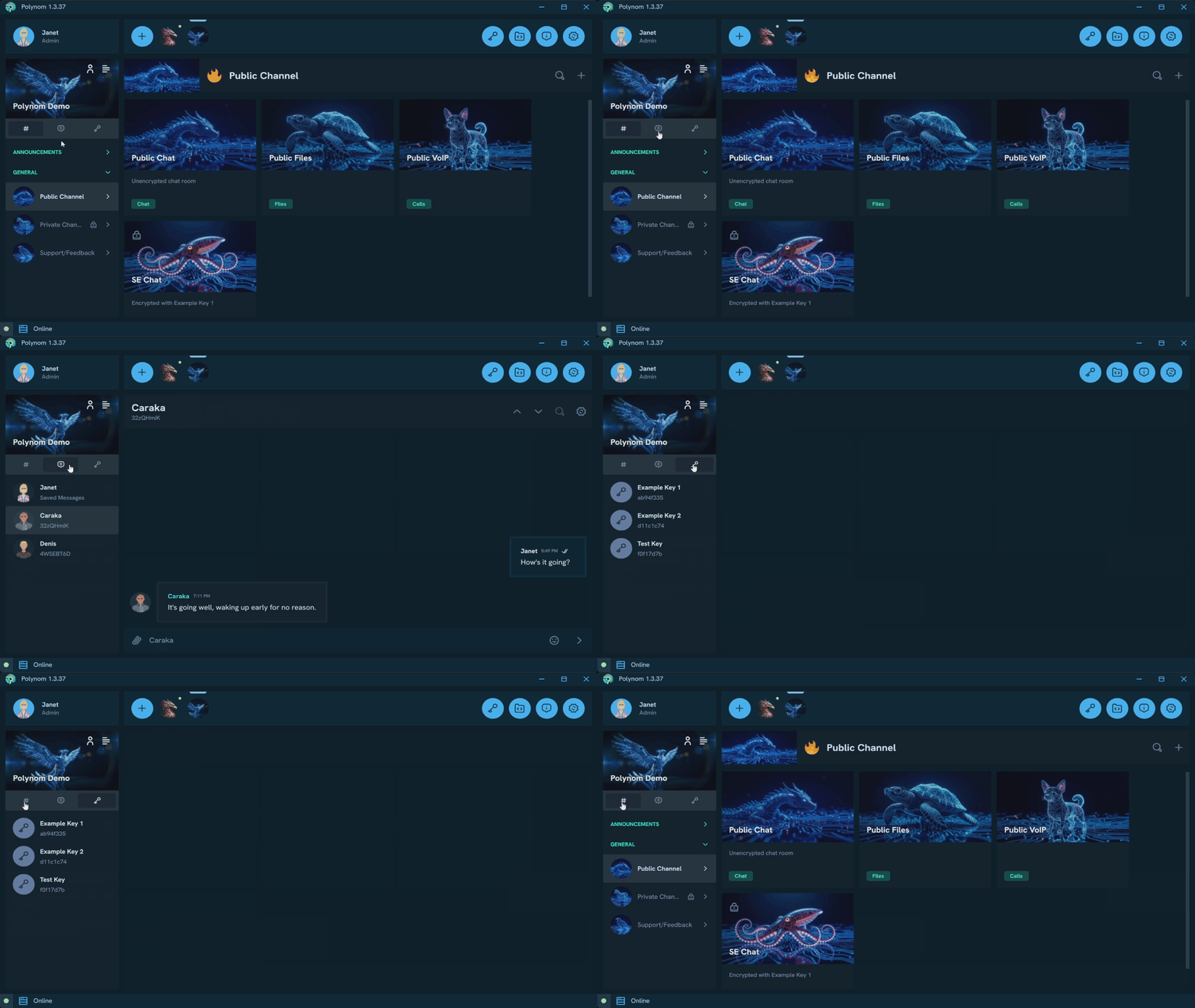
At the top of the Channel List, server tabs let you switch between three views for your current server: the Channel List, your Direct Messages, and your Quantum Rooms.
¶ Channel and Room Headers
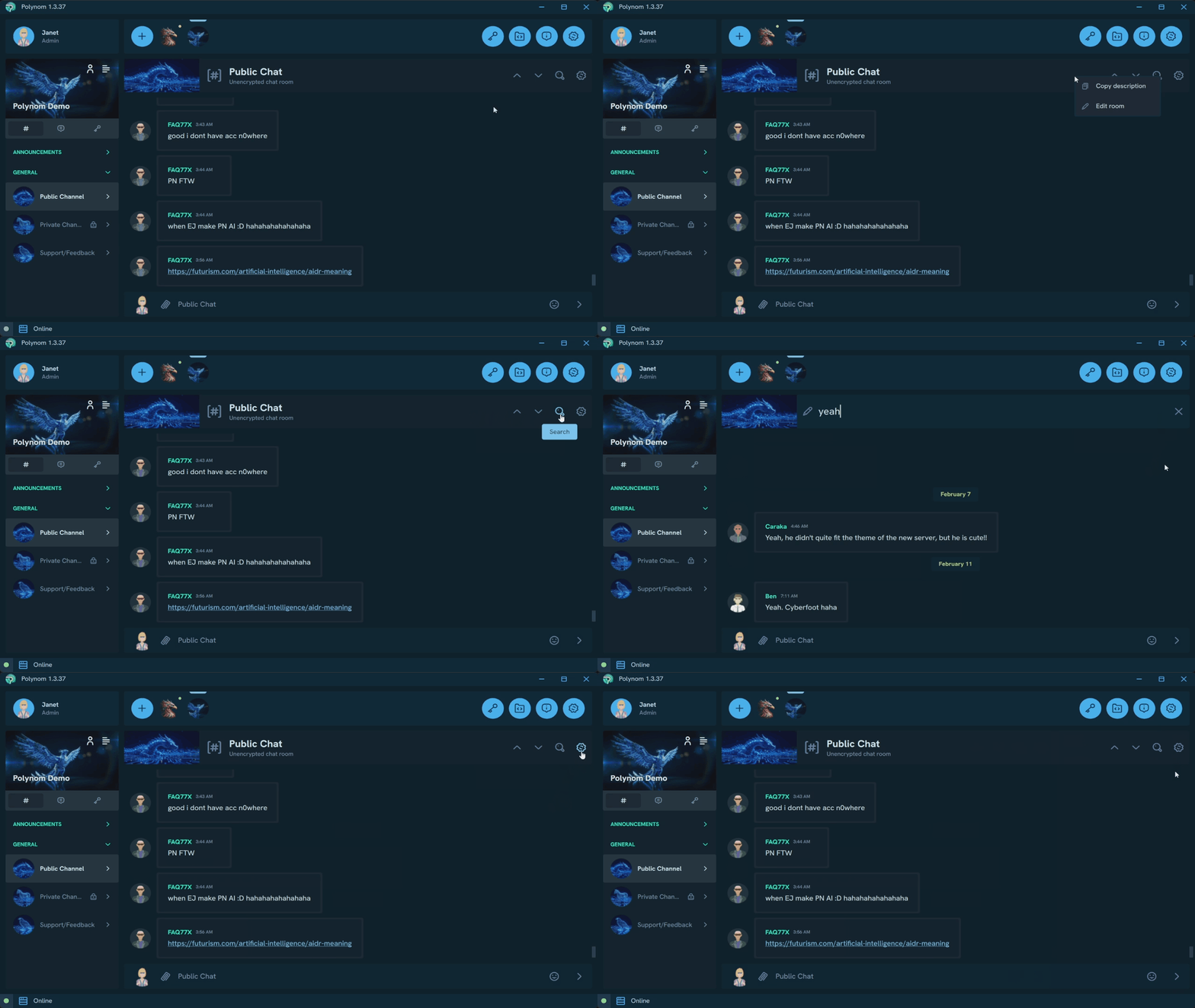
Both Channels and Rooms have a Header Bar with contextual actions. The Search button is always visible in the header, and Rooms also include a Right Panel button alongside it. Right-clicking the header opens a context menu with options to edit the Channel or Room and copy its description.
¶ The Right Panel
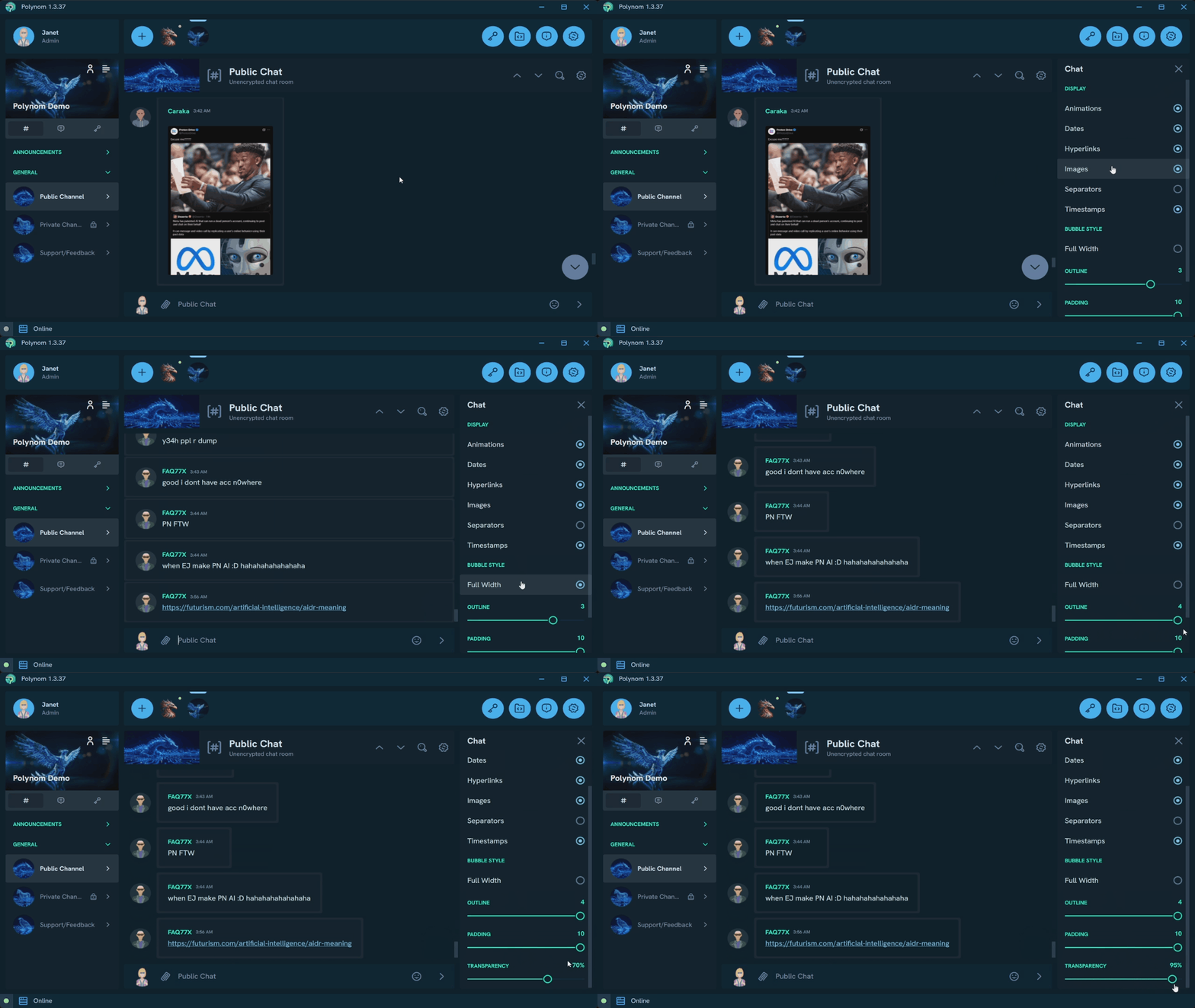
The Right Panel lets you adjust settings for the current view while keeping it visible. Changes take effect in real time - for example, tweaking Chat settings in the Right Panel updates the chat display as you go.
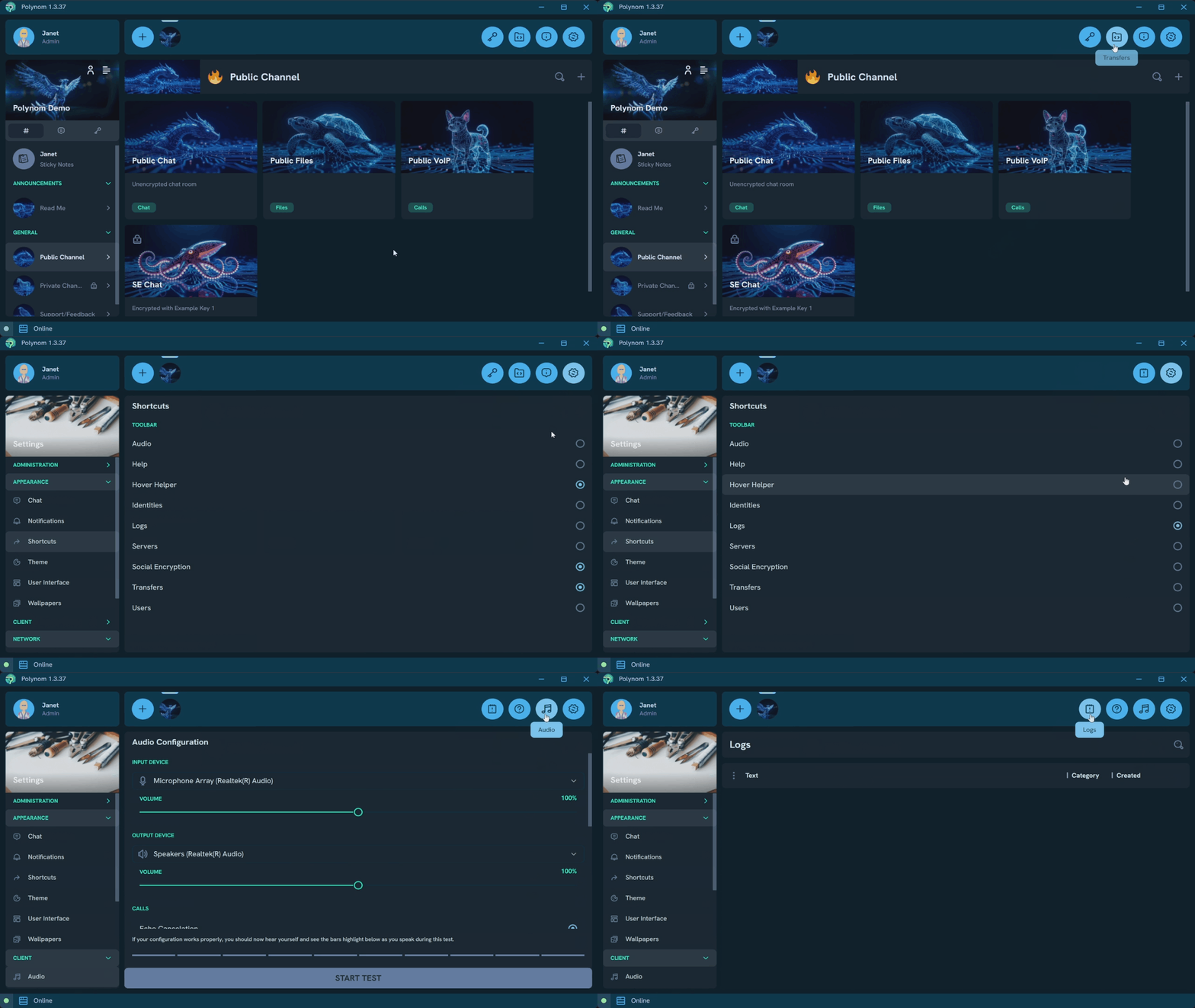
¶ How to use Shortcuts
Shortcuts let you choose which Settings pages appear as quick access links in the Toolbar. Head to Settings > Shortcuts to customize your selection.