¶ File Rooms
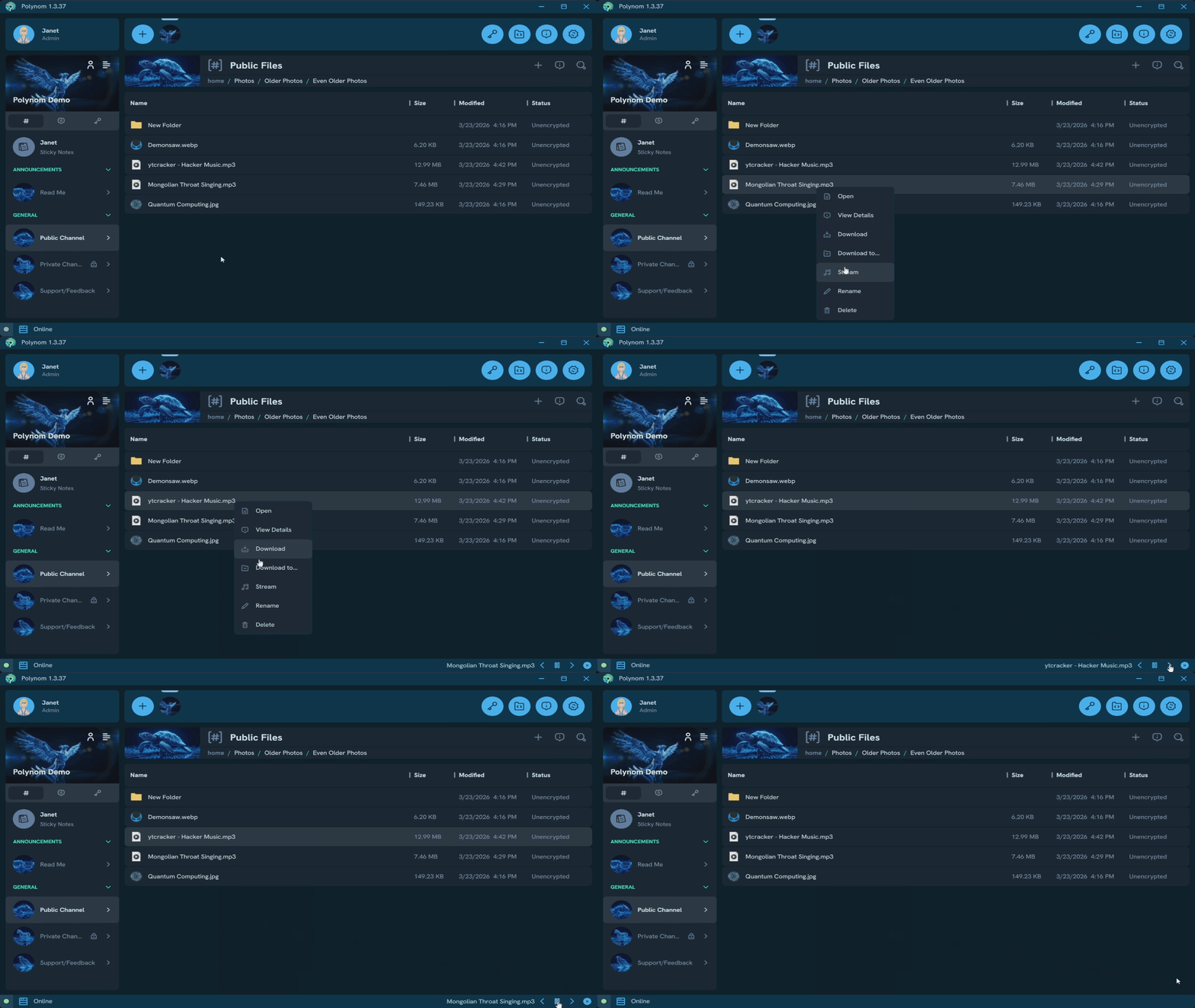
File Rooms are dedicated environments for file sharing within a Channel. They work similarly to a file browser, with a folder hierarchy, sortable column headers, and support for multiple file operations.
¶ Navigating File Rooms
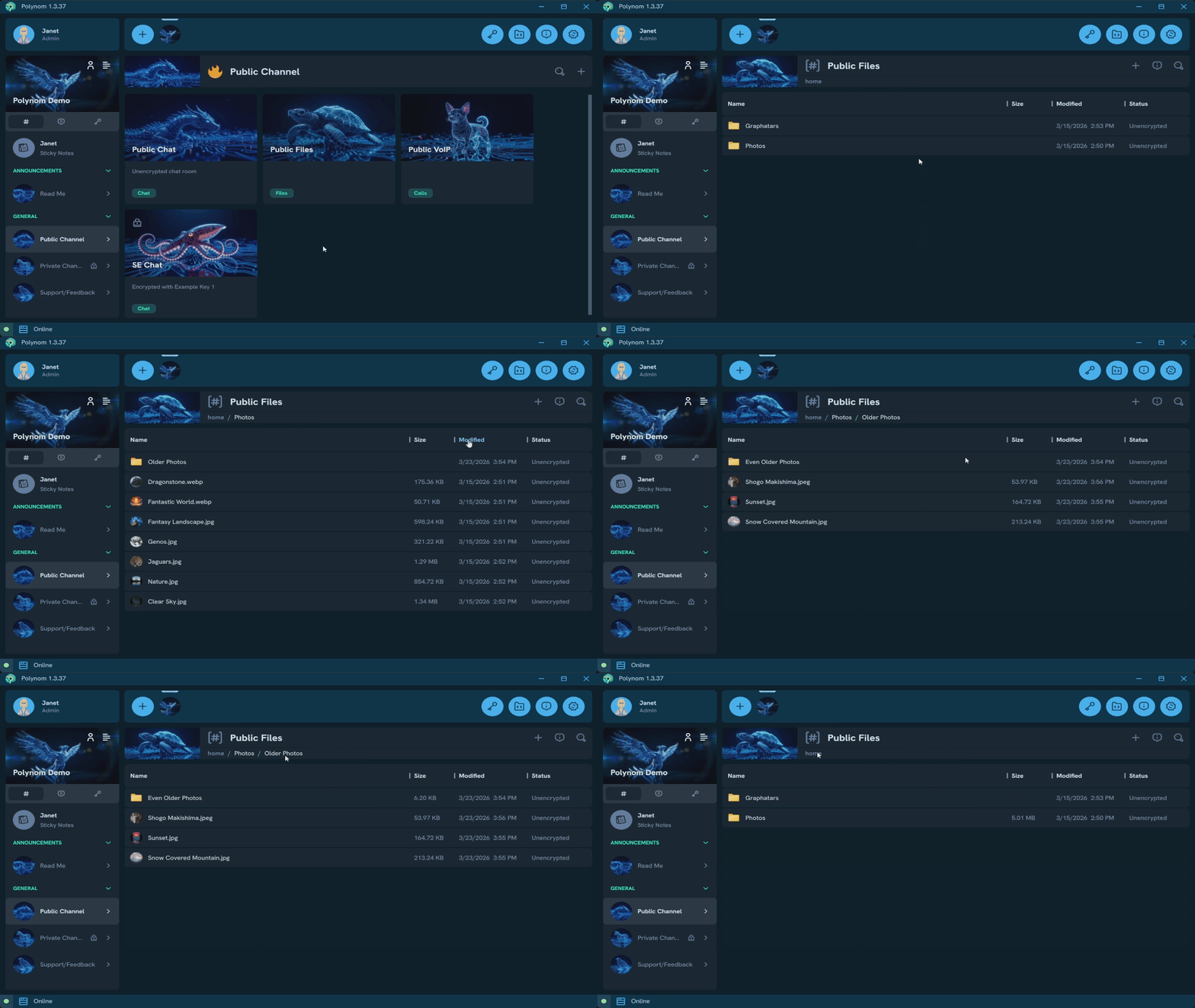
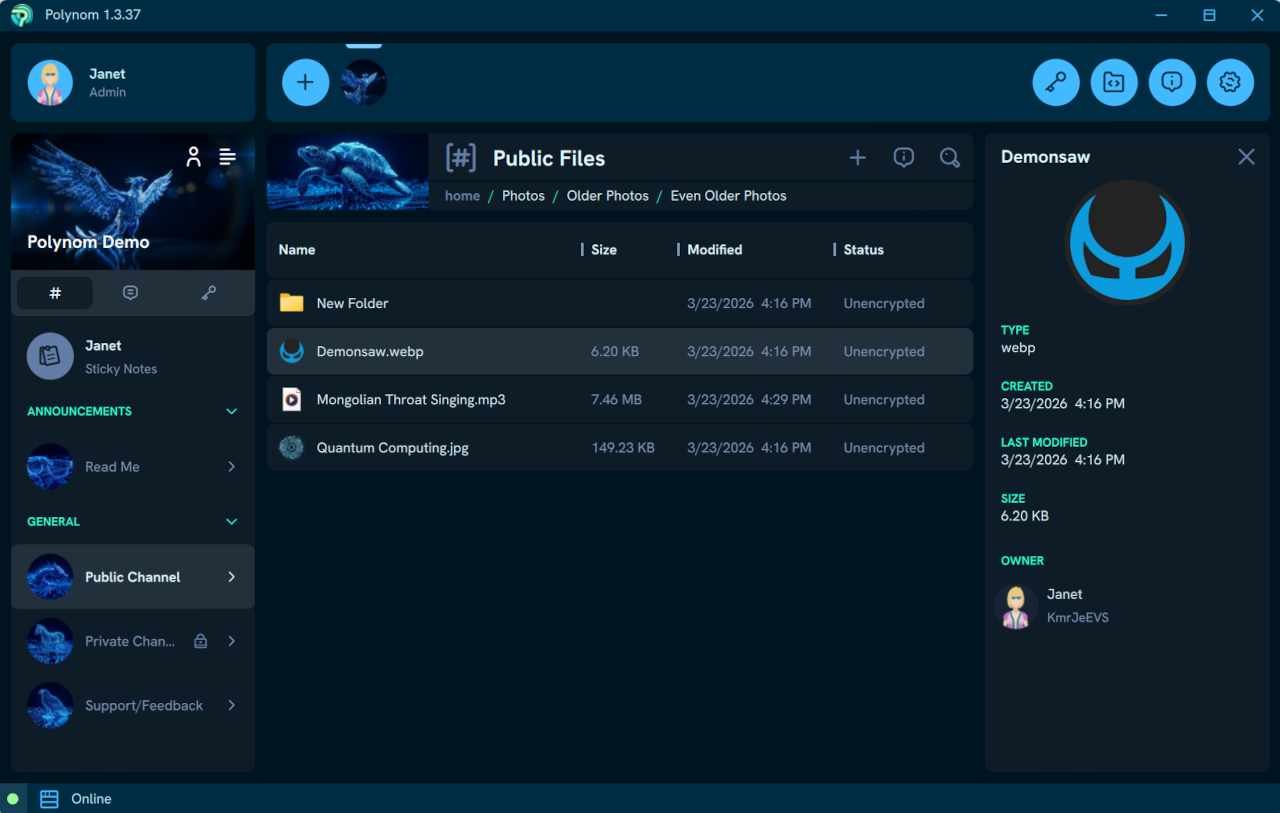
The header of a File Room displays the current folder path as an interactive address bar. Pressing any folder in the address takes you directly to that level of the hierarchy.
Column headers let you choose which information is displayed and how entries are sorted. The default columns are Name, Size, Modified date, and Social Encryption Status. Created date and File Type are available but disabled by default. Column widths can be adjusted by dragging the column borders, and a Reset Columns button restores all columns to their default state.
Searching within a File Room is supported, including by file extension. See Searching for more detail.
¶ Uploading and Creating Folders
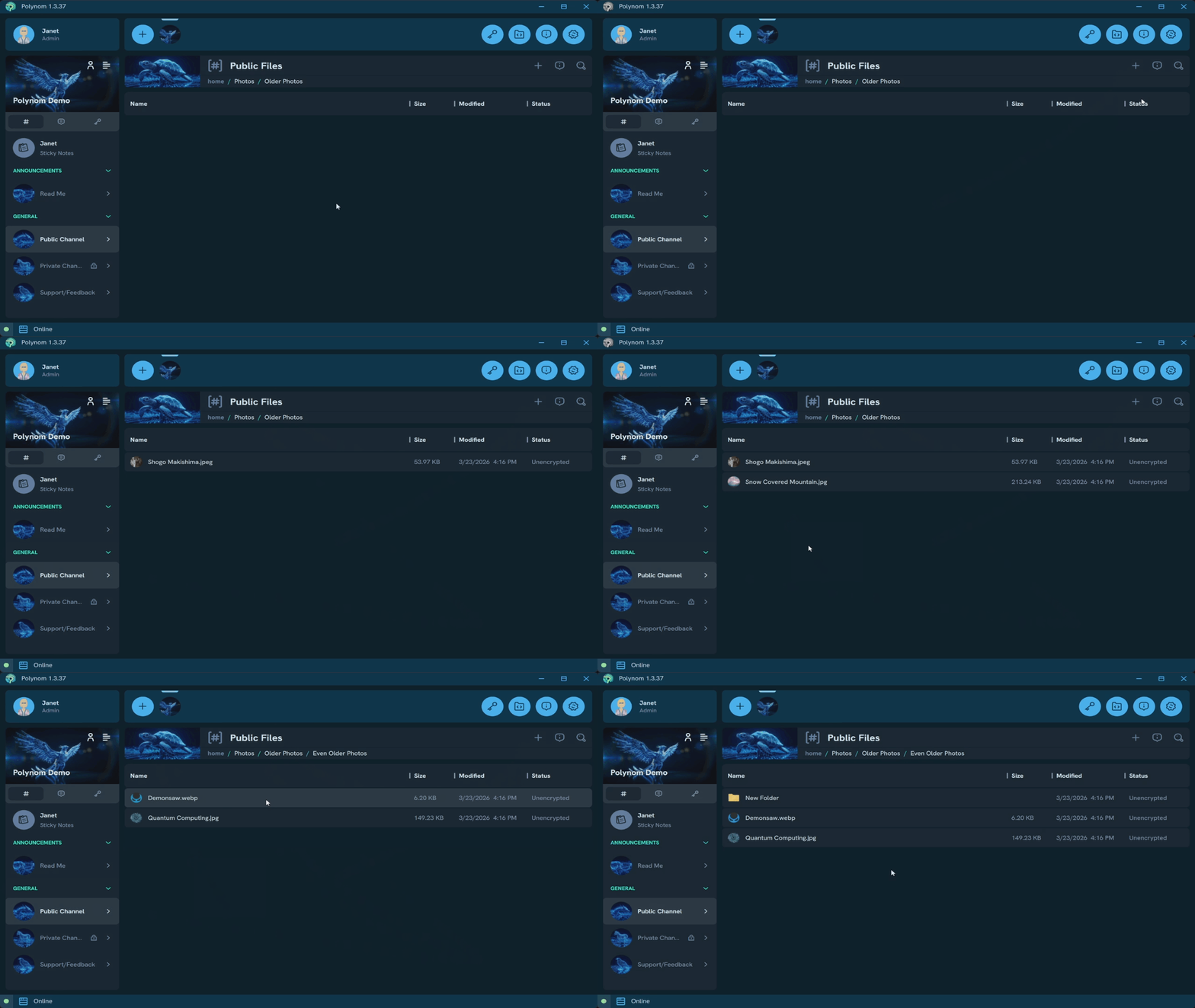
To upload files or folders, or to create a new folder, press the + button in the Room header. Alternatively, right-clicking anywhere in the File Room opens a context menu with the same options. Files and folders can also be dragged and dropped directly into the current directory.
¶ Working with Files and Folders
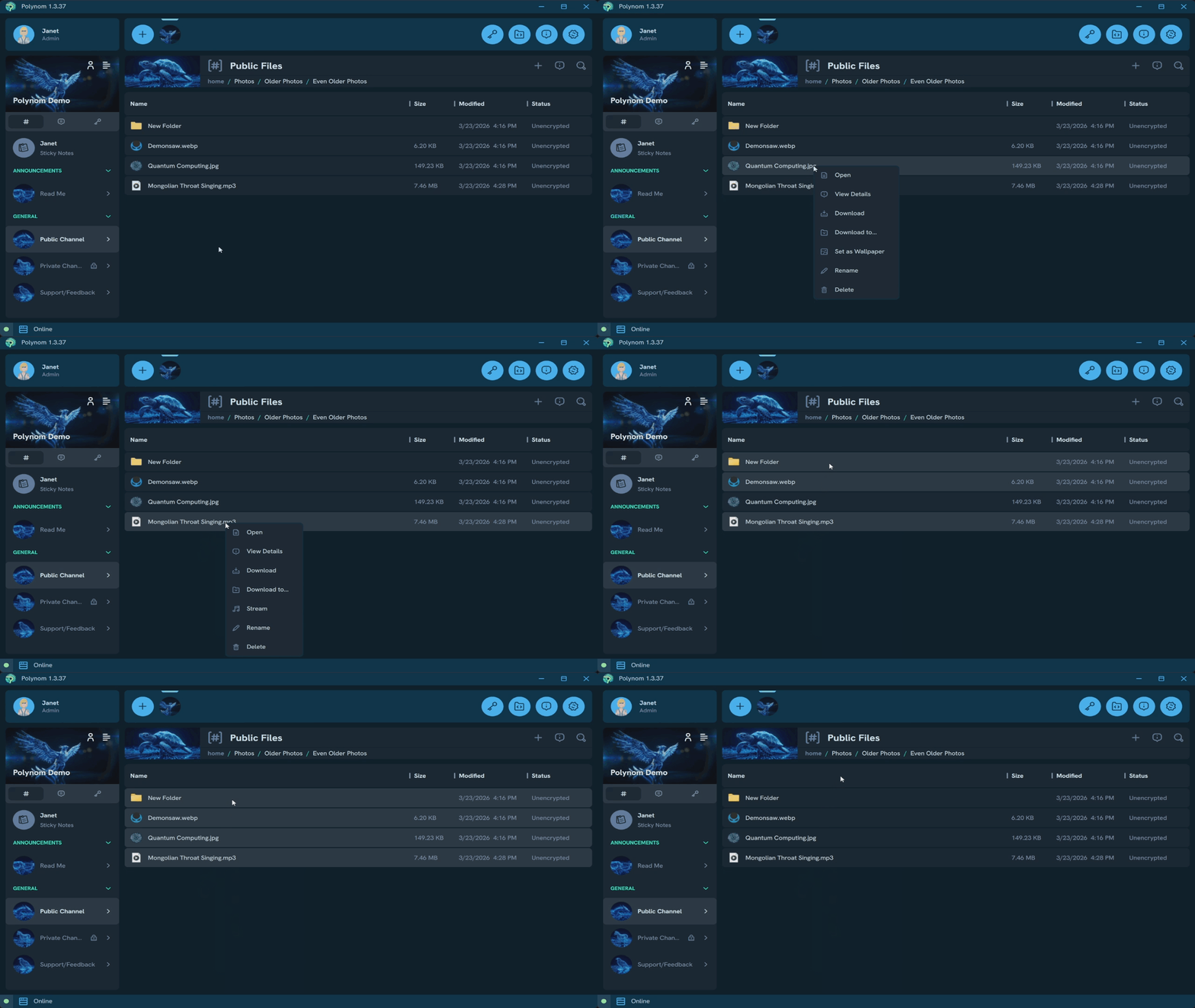
Right-clicking any file or folder opens a context menu with the following options:
- Open - Opens the file or folder
- View/Hide Details - Opens/closes the Right Panel
- Download - Downloads the file or folder to your default download location
- Download to... - Downloads the file or folders to a location of your choice
- Set as Wallpaper - Sets the file as your Polynom Wallpaper. Available for media files only
- Stream - Adds the file or folder to the Playlist
- Rename - Renames the file or folder inline
- Delete - Permanently deletes the file or folder
Pressing F2 while a file or folder is highlighted also starts inline rename. Press **Enter to confirm or Escape to cancel.
Multiple files and folders can be selected at once using Ctrl + Click for individual selections or Shift + Click for a range.
¶ File Details
Opening the Right Pane while a file or folder is highlighted shows all available details for that entry, including a media preview if applicable. The Right Panel is the only place in Polynom where the owner of a file or folder is displayed. It can be opened via the Room header or by right-clicking an entry and selecting Show Details.
¶ Streaming
Streaming is an experimental feature that lets you play music files directly within Polynom without downloading them.
Press Stream on any music file to add it to the Playlist. Pressing Stream on a folder adds all music files within it to the Playlist at once. Once at least one file has been added, a Streaming section appears in the Status Bar with playback controls for play/pause, previous track, and next track. The Streaming section can also be dismissed from the Status bar to exit the feature.
Note: Streaming is a work in progress. Volume control, track seeking, and forwarding/rewinding are not yet supported.